Stagelight MacBook Pro is a problem that you might be facing if you have noticed bright patches along the bottom edge of the screen on your MacBook Pro. This issue will manifest as uneven lighting that looks more like the lights in a theatre or movie house, and may get worse as time goes on.
It may not be an official Apple name, but Stage Light has been the common nickname of MacBook users. In most instances, it is an early symptom of the notorious Flexgate issue, associated with the display flex cable of some MacBook Pro variants.
This problem primarily occurs with MacBook Pro 2016 and 2017 models and may eventually cause the screen to flicker, go black at certain angles or even fail the backlight entirely. You will find what is causing the issue, which models are affected, and possible repair options, as well as quotes for repairing the issue and whether it’s still worth repairing in 2026.
What Is the Stagelight Issue on a MacBook Pro?
The Stagelight issue is a display issue that shows bright and uneven lines at the bottom of the display. The pattern looks a lot like a line of lights used for theater marquee lighting and is therefore known as the theater stage lights pattern.
Initially, the problem can appear as a minor one. Some users may only see it when watching videos in low light. Some users may only see when using dark wallpapers. Symptoms are typically more apparent over time, though.
The issue is directly related to the MacBook Pro’s backlight system. As the display cable wears out, the backlight will not evenly fill the screen.
Why Is It Called the Stage Light Effect?
Bright areas usually occur in patterns throughout the bottom edge of the display area.
The screen doesn’t have uniform lighting; rather, you’ll see a few bright arcs that look like stage lights at a show or concert.
It became so prevalent that MacBook users started calling it the “Stage Light effect.
What Does It Look Like?
You may notice:
- The bottom of the screen displays bright glowing spots.
- Uneven brightness distribution
- Near the bottom, flickering
- Adjusting the screen angle: blackouts.
Often, the problem is very gradual and starts very low.
What Causes the MacBook Pro Stage Light Issue?
The primary reason is a weak part known as the display flex cable.
The cable is used to link the display assembly to the internal display controller. The cable flexes over and over every time you open and close your laptop lid.
The cable suffers wear and tear after hundreds or thousands of cycles.
Over time, small cracks start to occur.
The Display Flex Cable Problem
Apple employed the thinner and shorter flex cables in the 2016 redesign of the MacBook Pro.
This made the laptop design slimmer, but also added a weakness in terms of durability.
Under normal use, the backlight connection becomes unstable due to the stretching of the cable.
Because of this, the users start to notice the Stage Light effect.
How Flexgate Develops Over Time
The typical flow of the problem is:
Stage 1
There are bright areas of the bottom screen.
⬇️
Stage 2
The screen begins to display the twinkle-twinkle pattern.
⬇️
Stage 3
At certain angles of the lid, the screen goes black.
⬇️
Stage 4
Full backlight flicker occurs.
When the cable gets badly damaged, there is no way for the problem to correct itself.
Which MacBook Pro Models Are Affected?
This is not a problem with all MacBook Pro.
Most of the cases are for a specific line of Intel processors.
2016 13-inch MacBook Pro
This model is the most common model reported.
The Touch Bar and non-Touch Bar versions are impacted.
2017 13-inch MacBook Pro
The 2017 version was also plagued by Flexgate issues.
It has been observed that users experienced symptoms after several years of normal use.
15-inch Models
Similar complaints occurred with some 15” models from 2016 and 2017, but not as frequently as they did with the 13” models.
Are M1, M2, M3, and M4 Models Affected?
No.
The initial Flexgate problem wasn’t seen as a major concern for Apple Silicon MacBooks.
The display cable was changed in later generations of Apple.
Although any electronic device can experience display issues, MacBooks in the M-series are not prone to this particular Stage Light defect.
Common Symptoms of the Stage Light Effect
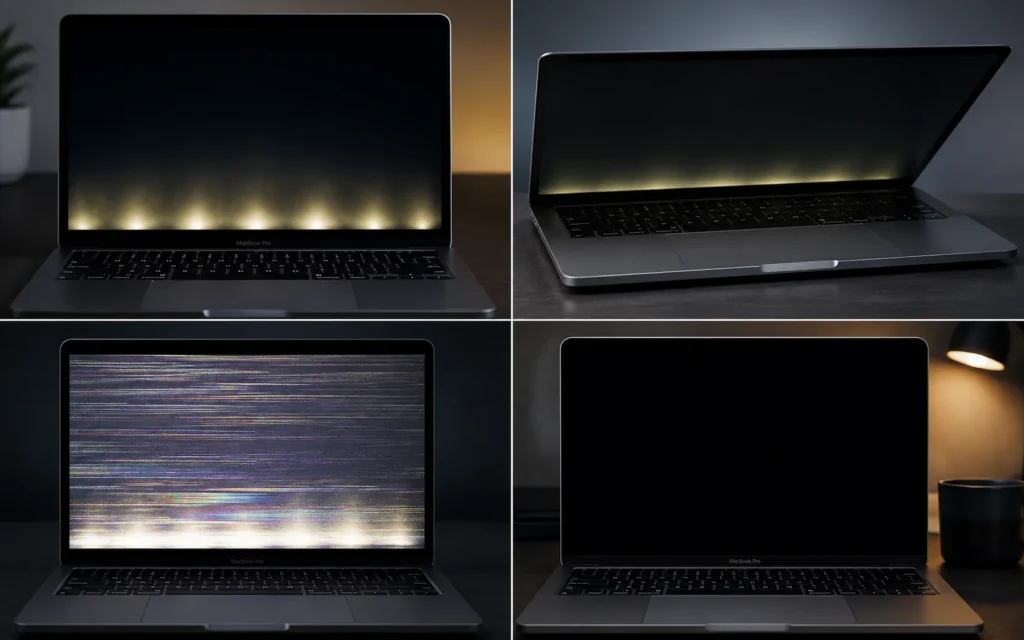
Recognising the symptoms early can help prevent complete display failure.
Bright Spots Along the Bottom Edge
This is typically the first indicator.
Bright spots will be seen in a non-uniform pattern near the bottom of the display.
Screen Goes Black at Certain Angles
The screen can be fine in one direction, but black in the other.
This is because the cable is stretching as the hinge moves.
Flickering Display
The brightness of the display may flash up and down or go dim for a short time.
This symptom can happen more often as time progresses.
Complete Backlight Failure
For severe cases, the screen turns black.
The laptop may still be operating, though.
If the image is faint when the flashlight is shone on the display, the display has only failed with respect to its backlight.
Is the Stage Light Issue the Same as Flexgate?
Essentially, yes.
However, there’s a slight difference.
The visible symptom is known as a stage light.
This is a hardware issue – Flexgate.
Remember, the way to think about it is:
| Term | Meaning |
|---|---|
| Stage Light | The visible lighting pattern |
| Flexgate | The display cable defect causing it |
Why Users Confuse Them
When most users see the Stage Light effect, it is the stage lighting that most of them find problematic.
Later, they discover that the problem lies with Flexgate.
Nowadays, the terms are often used synonymously.
How to Fix the MacBook Pro Stage Light Issue
Unfortunately, this is a problem that software updates can’t fix.
It’s a hardware problem.
Option 1: Temporary Testing

The severity can be tested by carefully opening and closing the lid.
The screen is not working properly at different angles, which indicates that the display cable is damaged.
This is only for diagnosis.
It is not a repair.
Option 2: Replace the Display Assembly
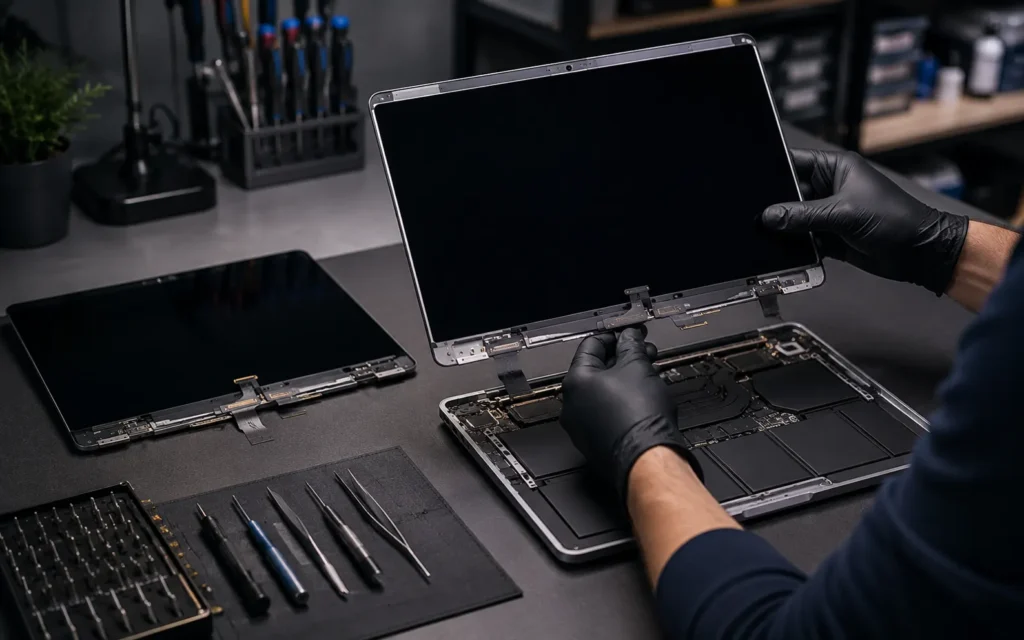
This is the most popular working one.
The whole display assembly, which contains the backlight system, is replaced.
The most dependable long-term outcomes are associated with this way of treatment.
Option 3: Third-Party Repair Shops
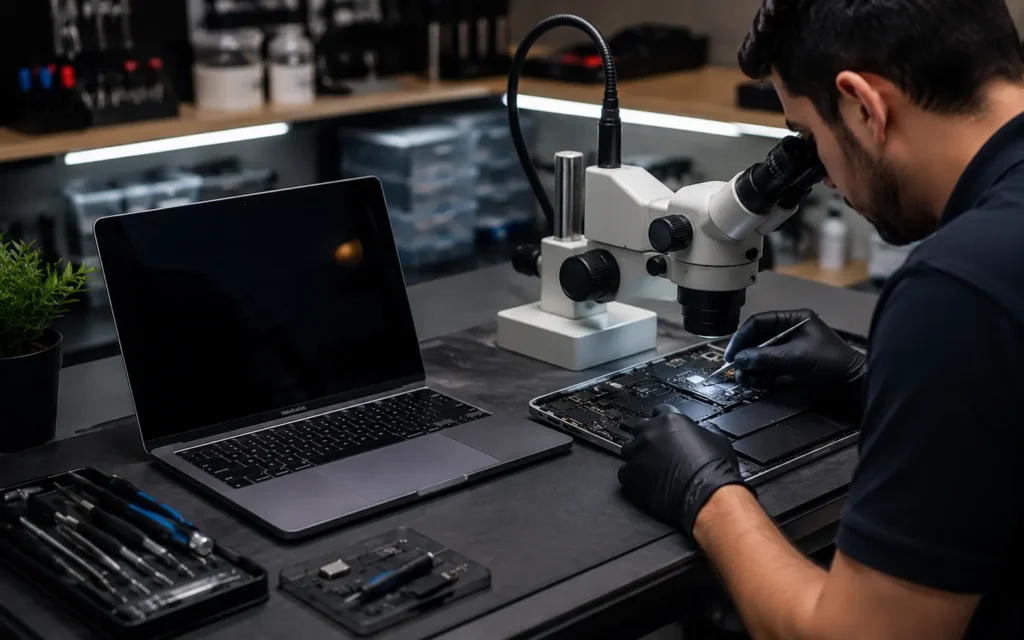
Repair shops may be able to provide more affordable repair options.
There are some specialists who can replace a specific part of the cable, rather than the whole display.
But the quality of repairs and the repairs performed depends on the provider.
Select a technician who has experience with MacBooks.
Should You Attempt a DIY Repair?
For most users, no.
The displays on MacBook are fragile and complicated to open.
An incorrect repair could cause damage to:
- The Retina display
- Internal connectors
- The display housing
That’s typically the safer choice, as it’s better to let a professional handle the repairs.
How Much Does It Cost to Repair?
The price of repair is dependent on your area and the repair company.
Apple Repair Costs
If it is not covered by the warranty, the repairs will be the most costly.
The prices vary from region to region and from model to model.
Independent Repair Shop Costs
Third-party repair companies tend to be cheaper.
But there are differences in quality and the warranty.
Is It Worth Repairing?
This is dependent upon the overall condition and age of the device.
If the condition is repairable, then it may be worth repairing:
- Battery Health is still good.
- Performance remains strong.
- Storage that suits you.
Repairing may not be worthwhile if:
Repairing may not be worthwhile if:
- Multiple hardware issues already exist.
- The battery is severely degraded.
- The device is over eight years old.
Can Apple Repair It for Free?
Not usually.
Earlier, Apple announced a limited service program for some of the affected MacBook Pro models.
Those eligibility periods, however, have now passed.
Apple’s Previous Service Program
The program concentrated on certain 2016 MacBook Pro 13-inch models.
The insurance was only valid under certain circumstances.
Does It Still Apply in 2026?
For most users, no.
Unless you have a separate warranty (e.g., AppleCare+ or an extended warranty plan, you can expect standard out-of-warranty repairs in 2026.
Be sure to check the serial number with Apple’s support directly.
How to Prevent the Stage Light Problem
While there is a design limitation to older affected models, there are ways to alleviate extra pressure on the display cable.
Open the Lid Gently
Do not force the laptop to open.
Smooth movements minimize the tension of the cable.
Avoid Excessive Pressure
Never press on the display panel.
Avoid carrying your laptop by the screen.
Use a Protective Sleeve
It will reduce physical stress in transportation when using a quality sleeve.
Keep Objects Away From the Keyboard
Don’t place pens, cables or other items in a closed MacBook.
Cathe n apply pressure to the display.
Should You Buy a Used MacBook Pro With This Issue?
Proceed carefully.
There is no universal answer for this, as it is dependent upon the severity.
When to Avoid It
Avoid purchasing if:
- Frequently, the display flickers.
- At some angles, the screen is black.
- Severe = bright patches.
- Seller has no knowledge of previous repairs.
When It’s Still Worth Buying
It’s still a good deal to purchase if:
- This is a substantial reduction in the price.
- The repair was done by a professional and is already finished.
- There is no problem with battery health.
- The laptop otherwise is in good condition.
Please check the display before you buy.
Test the laptop for a few minutes, if possible, while tilting the laptop lid from side to side.
Quick Diagnosis Checklist
Use this checklist before making a booking for repair.
- Are there bright spots along the bottom of the screen?
- Does the display ever have a flicker effect?
- At wider angles, does the screen go black?
- Does an external monitor work normally?
- Have the symptoms become worse over time?
If you had more than one answer, there’s a chance that your MacBook is suffering from Flexgate.
Final Thoughts
The Stagelight MacBook Pro issue is one of the most well-known display problems associated with certain 2016 and 2017 MacBook Pro models.
The initial symptoms may seem insignificant, but ultimately, they can lead to a total loss of backlight capabilities.
Fortunately, the solution is out of the hands of the average consumer, and later Apple Silicon models are not notorious for this common problem.
When you are having symptoms of Stage Light, an early diagnosis can prevent you from having to suffer from more severe display failures and can help you make a better repair decision.
Must Read:
Best Laptops Under $500 in 2026 — Budget Picks Compared
Best Gaming Laptops 2026 — Top 8 for Every Budget
Frequently Asked Questions
Can I fix the Stage Light issue myself?
Generally, do not attempt to repair it yourself if you are not a most user. Professional repair is normally safer.
Is Flexgate dangerous?
No. It is not harmful, but it can ultimately make your display unusable.
Does Apple still repair it for free?
Typically, no—most services have come to a close.
Can I keep using my MacBook?
Yes, but if repairs are not done sooner rather than later, the damage may be exacerbated.
How long does a repair take?
This is dependent upon the provider. The repairs can be done within a few days.
Will the issue come back after repair?
The quality repair, with new parts, lowers the risk significantly.