Using an HP laptop on bed may seem harmless, even if you are watching Netflix, taking an online class, replying to emails, or working from home. The bed is often the most convenient place for many people to work on a laptop.
But what most users are unaware of is that soft surfaces such as mattresses, pillows, and blankets can prevent the laptop from breathing and cause overheating problems.
Today’s HP laptop uses cooling systems that rely on the flow of air. These vents can clog, causing heat buildup that can affect how well the device performs, its battery life and its long-term health.
The thing that’s great about this is that you don’t have to give up using your laptop in bed completely. Just a few tips to ensure its safety.
Why Do People Use an HP Laptop on a Bed?
Lots of people like to make use of a laptop in bed for a number of reasons.
Comfort and Convenience
Beds make for a laid-back atmosphere instead of a desk or chair.
Lots of visitors enjoy perched up against a pillow while surfing the internet, reading articles, or watching videos.
Working From Home
The company has found that remote working has altered the way people use their laptops.
Employees often work several hours a day from their bedrooms because it is convenient and there is not enough room for their work.
Watching Movies and Streaming
Over the last few years, streaming platforms have made the setup of beds a very popular thing to do.
Users are watching films, TV shows and YouTube videos on their HP laptop before going to sleep.
Studying and Online Classes
It is common for students to use their laptops in bed during lectures, doing assignments, or preparing for exams.
While comfortable, precautions must be taken when using it for extended periods of time.
Can You Put an HP Laptop on a Bed?
The simple answer is:
Yes, but you should never place it directly on soft surfaces for extended periods.
The laptop cooling openings can be blocked by beds, blankets, and pillows.
HP laptops are designed to draw cool air into their system and expel hot air through specific vents.
When the airflow is blocked, the heat inside the laptop will build up rapidly.
Short-term use may not affect people right away, but frequent, daily use can make it more likely for the body to overheat and cause damage to the parts inside.
The best strategy is to avoid the kind of instability that can occur when your laptop lies between your lap and the bed—there should be a firm, solid surface in between.
Why Using an HP Laptop on a Bed Can Be Dangerous
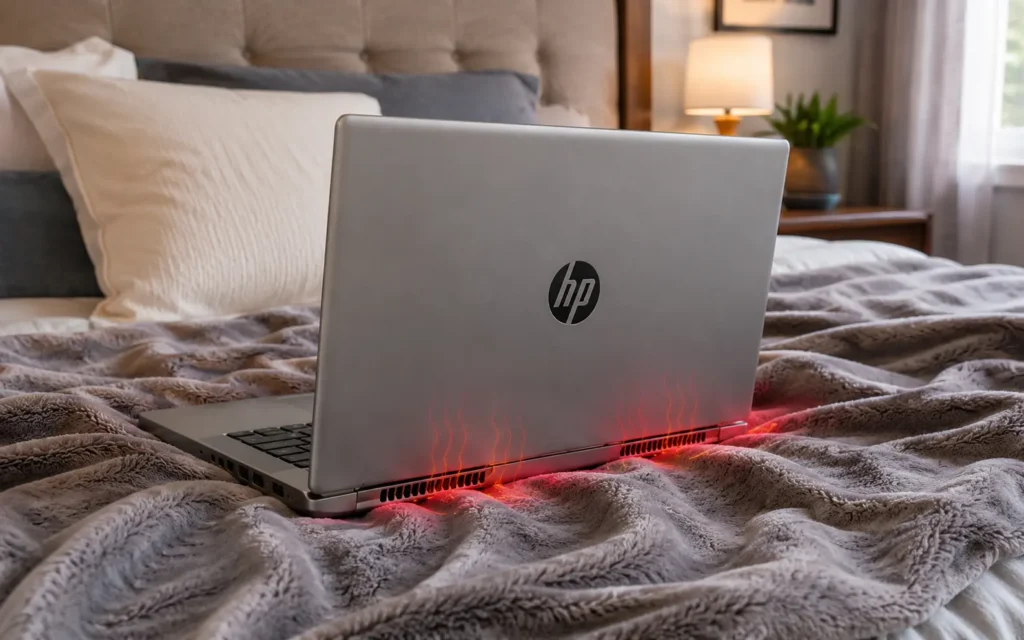
There are a number of potential issues with a lack of airflow.
Blocked Air Vents
The most common locations for vents in most HP laptops are the bottom, sides, or back of the laptop.
These openings can be covered with soft bedding materials, which will hinder the cooling process.
Excess Heat Build-Up
If the laptop is not ventilated, heat accumulates within the laptop.
This will rapidly heat up the body.
Reduced Performance
The system has to slow down when the temperature is high.
The processor automatically slows down to avoid overheating.
Dust Accumulation
Of course, dust, fibers, and fabric particles accumulate on beds.
These can be drawn into cooling vents and lodged in the cooling fan.
Battery Wear
Too much heat is harmful to batteries.
With time, the battery capacity may diminish more than anticipated.
5 Common Risks of Using an HP Laptop on a Bed
1. Overheating
The most common problem is overheating.
Overheating occurs in the CPU, GPU, memory and storage devices.
2. Thermal Throttling
Thermal Throttling is a protection feature.
The processor intentionally slows down if the temperature exceeds the requirement.
You may notice:
- Slower performance
- Lagging applications
- Delayed response times
3. Battery Damage
Batteries are one of the most significant threats to laptops when they overheat.
Exposure over a long period of time may shorten battery life.
4. Shortened Hardware Lifespan
If the vehicle is kept running at too high a temperature over a long period of time, the components inside may wear out.
This includes:
- Motherboard
- Cooling fan
- SSD
- Battery
- Processor
5. Unexpected Shutdowns
Some HP Laptops will automatically turn off when they reach unsafe temperatures.
This will help to avoid serious damage to hardware.
Signs Your HP Laptop Is Overheating
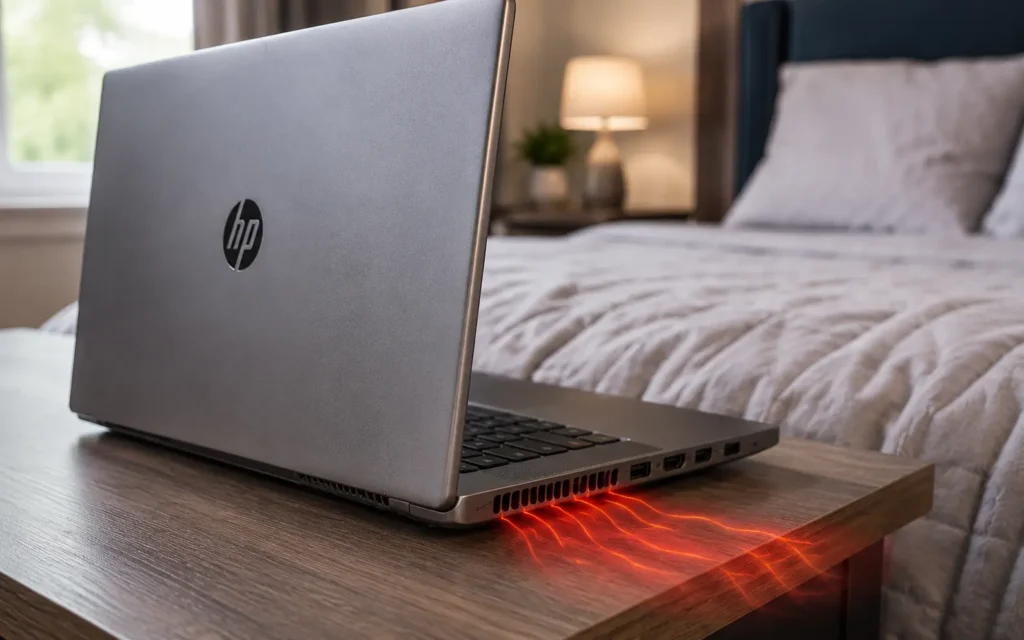
Be alert to these signs of danger.
The Keyboard Feels Very Hot
If hands feel too hot, it could be overheating.
Loud Fan Noise
Fans that are operating at high speed and don’t stop indicate temperature problems.
Lagging Performance
Programs may start out slowly.
The Web browser may freeze.
Automatic Shutdowns
If you have to turn the computer on and off often, it could be a sign of overheating.
Battery Drains Faster
When heat is added beyond the design, it requires additional power.
How to Safely Use an HP Laptop on a Bed
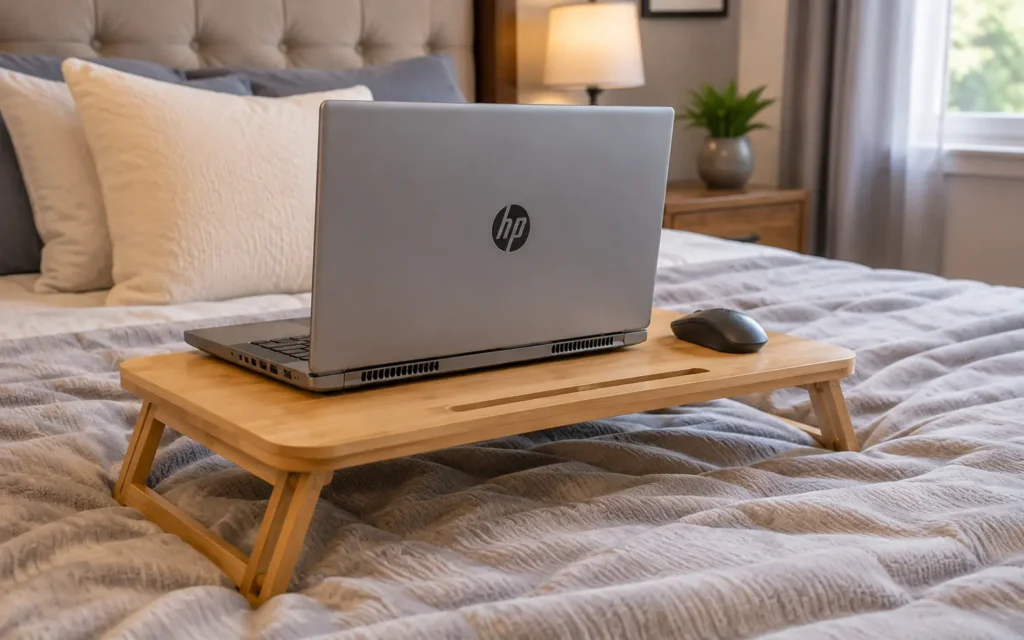
Laptop use in bed is still possible without compromising on safety.
Use a Lap Desk
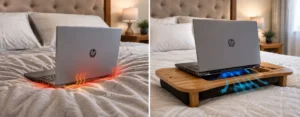
A lap desk helps to establish a good barrier between the computer and the bed.
Benefits include:
- Better airflow
- Improved posture
- Greater comfort
Use a Cooling Pad
Cooling pads provide additional airflow.
They contribute to the reduction of body temperature in prolonged sessions.
Elevate the Laptop
Small laptop stands can make a big difference in terms of ventilation.
Air circulates at all levels, even if it is a slight elevation.
Keep Air Vents Clear
Always check that vents are unobstructed.
Never cover them with blankets or pillows.
Avoid Thick Blankets
Heavy bedding retains heat easily.
Instead, select a suitable hard, flat area.
Clean Dust Regularly
Use compressed air to clean vents/fans regularly every few months.
Accumulation of dust affects the cooling performance.
Best Accessories for Using a Laptop on a Bed
These add-ons can be so much difference.
Lap Desk
Supplies a secure work area.
Cooling Pad
Provides additional cooling assistance.
Portable Laptop Stand
Helps improve airflow and ergonomics.
Wireless Keyboard
Gives increased flexibility in positioning.
Wireless Mouse
Designs an environment that is more comfortable.
Mistakes to Avoid
Make sure you don’t make these common errors.
Placing the Laptop on a Pillow
Pillows are completely airtight.
Covering Side Vents
Never place blankets over any vents.
Gaming for Long Hours
Gaming produces a lot of heat.
Spend as much time as possible at a desk.
Charging Continuously
Don’t leave the charger plugged in when the battery is full.
Ignoring Fan Noise
Some fans start to sound loud early on.
Do not delay the investigation of the cause.
Conclusion
No, it’s not necessarily a bad idea to use an HP laptop on a bed, but there may be issues in the long run if you do it the wrong way.
The problem is that you cannot circulate air through the system, which can create a risk of overheating, performance issues, battery degradation and shorten the hardware’s life.
Luckily, there’s an easy answer.
The use of a lap desk, clearing of vents, and the use of a cooling pad, along with avoiding using thick blankets, can minimize the risks.
With just a few minor tweaks, you can have your HP laptop safe, cool, and working for years in the comfort of your bed.
Must Read:
Surface Pro 4 Screen Scrambled? Causes, Fixes, and When to Repair It
Stagelight MacBook Pro: Causes, Fixes, Affected Models & Repair Costs (2026 Guide)
Frequently Asked Questions
Is it bad to use an HP laptop on a bed?
Occasionally, no. But its direct application to soft surfaces over extended periods can lead to overheating.
Can a laptop overheat on a blanket?
Yes. Blankets will prevent air circulation and will trap heat.
Can overheating damage my HP laptop?
Overheating can cause battery life to be shortened and the internal components to wear out.
Is a cooling pad necessary?
Not required, but it can be very convenient when it’s used for longer periods.
What surface is safest for a laptop?
The safest surfaces are hard, flat surfaces like desks, lap desks, or laptop stands.