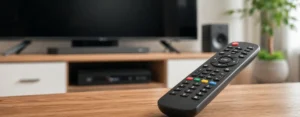
In many cases, there is a need to operate more than one entertainment system with a single universal remote control; this is where the RCA universal remote comes in handy. The universal remote is a gadget designed specifically for the RCA cable box, which enables you to control your soundbar, streaming device, DVD player, cable box, and TV from a single remote.
But setting up requires the right code for the universal remote that is compatible with the car. Cable codes link the remote to your particular device, and support features like switching power, volume control, navigating channels, accessing menus, and switching inputs.
This guide covers every facet of the use of RCA universal remote codes, from the methods used to program a new one, to searching for a lost remote, to troubleshooting problems with codes, compatible remotes, and universal remote coding codes themselves.
What Are RCA Universal Remote Codes?
RCA universal remote codes are numeric codes that are required for the pairing of an RCA remote with a TV, audio system, streaming device, DVD player, Blu-ray player, cable box, and satellite receiver.
All electronic devices send out codes as instructions. Programming code is instructions sent by the remote to differentiate and/or identify the signal into which the specific code has been loaded, enabling correct commands to be sent to the signal detected by the device.
If the code is not there, the remote is not able to communicate effectively with it.
Why Are Remote Codes Necessary?
An RCA universal remote can be controlled by remote codes to do the following:
- Acting as a switch to turn devices out or on or off
- Adjusting volume levels
- Changing channels
- Accessing settings menus
- Switching input sources
- Navigating streaming apps
- Controlling media playback
Imagine the code as a digital connection between the remote and the device to be controlled.
How RCA Universal Remotes Work
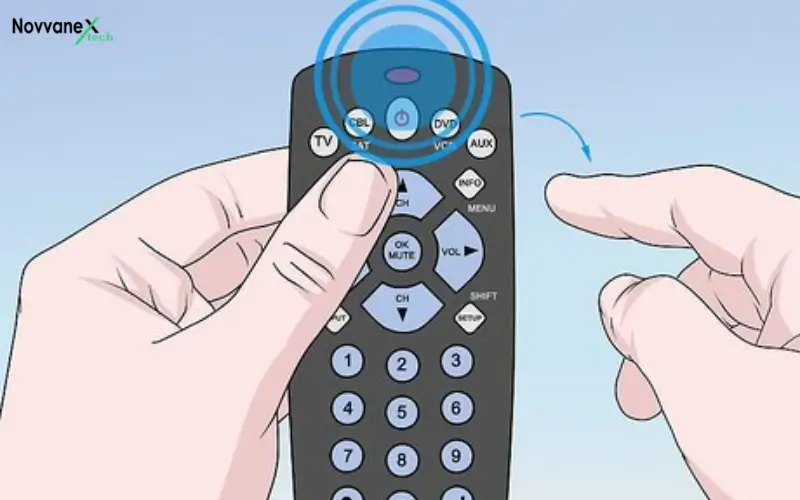
The majority of RCAs use IR technology to liaise with electronic devices. Pressing a button will cause the remote to send out an infrared signal to a device. The solid code programs what to be sent. That signal is accepted by the device and causes the device to act.
Each brand will have its own signal pattern and thus signalling codes.
Devices Compatible With RCA Universal Remotes
Generally, RCA universal remotes are capable of controlling:
- Smart TVs
- LED TVs
- LCD TVs
- HDTVs
- Streaming devices
- Cable boxes
- Satellite receivers
- Soundbars
- Home theater systems
- Audio receivers
- DVD players
- Blu-ray players
It really depends on the product and model of the RCA remote.
How to Find the Correct RCA Universal Remote Code
The key to good Programming is to get the right Code!
Check the RCA Code List
Most RCAs have the code list sorted by:
- Device category
- Manufacturer
- Brand name
Find the brand of the device and record all the codes.
Identify Your Device Brand
Make sure that the device is from a specific manufacturer before you program.
Common examples include:
- Samsung
- LG
- Sony
- TCL
- Hisense
- Vizio
- Sharp
- Panasonic
- Philips
- Insignia
Different brands may need to be tested to find the perfect one.
Try Multiple Codes
If the first code does not work, continue testing additional codes assigned to that brand.
Different device models often require different programming codes.
Common RCA Universal Remote Codes for Popular TV Brands
While code availability varies by remote model, these are commonly used code categories.
Samsung TV Codes
Popular Samsung codes often include:
- 12051
- 10812
- 10060
- 10702
LG TV Codes
Frequently used LG codes include:
- 11423
- 10178
- 11178
- 10700
Sony TV Codes
Common Sony codes include:
- 10000
- 10810
- 11317
- 11100
Vizio TV Codes
Popular Vizio codes include:
- 11758
- 10864
- 11756
- 10178
TCL TV Codes
Frequently used TCL codes include:
- 12434
- 11756
- 12049
- 12290
Always verify codes against your remote model’s programming guide.
How to Program an RCA Universal Remote Using Codes
Programming is generally the fastest and most effective way to program an RCA universal remote with a code. Before starting, ensure you have the proper code for the TV, soundbar, DVD player, or other device.
Step 1: Install Fresh Batteries
Replace batteries in the RCA remote. The remote may not work properly or go to programming/or may not enter programming if batteries are weak or old. The use of new batteries can assure a hassle-free installation process.
Step 2: Turn On the Device
Turn on the device that you wish to control, such as the TV, DVD player, or soundbar. Keep the device in view of the remote to receive signals for programming.
Step 3: Press and Hold the Setup Button
Hold down the Set button on the remote control until the Set light comes on. This will normally require a couple of seconds. Press and hold the button, then release when the light remains ON. Now the remote is set for programming.
Step 4: Select the Device Type
Simply push the button of your desired program device.
Examples include:
- TV for televisions
- Additional copies of the DVD or Blu-ray for players.
- Supporting soundbar / audio device customer support.
- Streaming for compatible streaming devices
Once the device button is depressed, the indicator light should stay on.
Step 5: Enter the Device Code
Using the number keypad, enter the programming code for your device. Be careful entering the code and take care not to pause for too long between digits.
When the code is accepted, the LED will go out. This is to indicate that the remote has been coded successfully.
Step 6: Test the Remote
Hold the remote pointing toward the device and use the main functions such as:
- Power On/Off
- Volume Up and Down
- Channel Changing
- Mute Button
- Enter or Source Button
- Menu Navigation
If everything is working as it should be, you are done. If some buttons function or the device doesn’t react to them, try using another code that is installed for your device brand.
How to Program an RCA Universal Remote Without Codes
If you are not sure of the programming code of your device,e then do not worry. Most universal remotes, such as the RCA remotes, have an Auto Code Search feature, which automatically searches for the correct code. This approach is helpful if the code list is not present or if none of the codes listed match.
Step 1: Turn On the Device
To turn on the TV, soundbar, DVD player, or another device that you wish to control. Be sure to switch the device on first before you begin with the programming.
Step 2: Turn On the Device
Hold down the SETUP button on the RCA remote till the indicator light is on and stays illuminated. After keeping the light on, press the SETUP button once more. This means that the remote is now prepared to look for a code that is compatible.
Step 2: Turn On the Device
Manually turn on the device you want to control, such as your TV, DVD player, or soundbar. Keep the device within sight of the remote so it can receive signals during programming.
Step 3: Press and Hold the Setup Button
Press and hold the Setup button on the RCA remote until the indicator light turns on. This usually takes a few seconds. Once the light stays on, release the button. The remote is now ready for programming.
Step 4: Select the Device Type
Turn the remote towards the product and press the Power button several times. Each time you press the button, the remote uses a distinct code from its onboard database.
Slowly press the Power button, making several seconds between each press.
- Watch for and Pay Attention to a Response
- Press and hold the Power button until shut down.
- On power-up:
Step 5: Watch for a Response
Discard the code based on the instructions of the remote (might need to vary somewhat depending on the model of the RCA remote).
Now the remote has determined a code that might be compatible with your product.
Step 6: Test the Remote Functions
Restore power to the device and check the most critical functions, such as:
- Power On and Off
- Volume Controls
- Channel Buttons
- Mute Function
- Input or Source Selection
- Menu Navigation
If there are no problems with functions, then the setup is complete. Repeat the Auto Code Search operation if any of the buttons don’t function well to get the desired matching code.
Helpful Tip
The Auto Code Search method can require several minutes since there are hundreds of codes stored as remote tests. Be patient and repeat the process until you get one of the codes to get full functionality with your device. After discovering a code that works, record it for future use in case you need to repeat the program.
How to Connect an RCA Universal Remote to a Smart TV
The majority of smart TVs can be set up through the same procedure as regular televisions.
Samsung Smart TVs
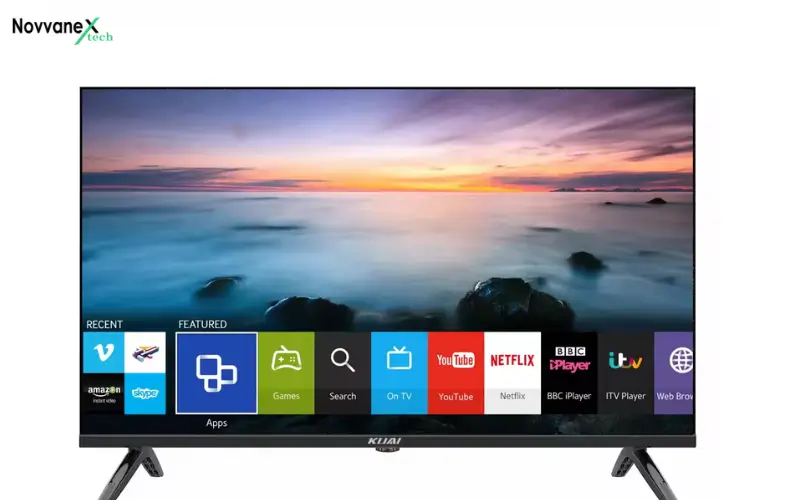
Enter a matching code and test:
- Power controls
- Volume functions
- Input selection
- Navigation buttons
LG Smart TVs
Verify:
- Menu navigation
- Home screen access
- Volume controls
Sony Smart TVs
Ensure channel navigation and smart menu work.
TCL and Roku TVs
Check:
- Directional buttons
- Streaming app navigation
- Home menu controls
Android TV and Google TV Devices
Test:
- Home button functionality
- Menu access
- Playback controls
The manufacturer’s remote control may be needed for some advanced TV features.
How to resolve some common issues with the RCA Universal Remote
Troubleshooting Common RCA Universal Remote Problems
Express Entry: The Remote Do Not Turn On the Device
Possible causes include:
Incorrect Programming Code
Use another code that is listed for your device brand.
Weak Batteries
Change used batteries for new ones.
Blocked Infrared Sensor
Make sure that no material is blocking the signal path.
Wrong Device Mode
Check the programming for a correct selection of the device button.
Some Buttons Work While Others Do Not
This is usually the case when it is a sign of partial compatibility.
Use another code in the same brand list.
Other code might unlock some other functions.
The Remote Suddenly Stops Working
Common causes include:
- Low battery power
- Lost programming settings
- Physical damage
- Dirty battery contacts
The replacement of batteries and reprogramming of the remote usually takes care of the problem.
The Indicator Light Keeps Flashing
A flashing indicator light may indicate:
- Invalid code entry
- Low batteries
- Failed programming attempt
- Internal error
Perform a reset and restart the setup process.
How to Reset an RCA Universal Remote
Resetting the remote can resolve many performance and programming issues.
Soft Reset Method
Follow these steps:
- Remove the batteries.
- Press every button once.
- Wait approximately five minutes.
- Reinstall the batteries.
This process clears temporary errors.
Factory Reset Method
Some RCA models support a factory reset.
A factory reset may:
- Remove saved codes
- Restore default settings
- Fix programming conflicts
After resetting, you must program the remote again.
How to Test Whether Your RCA Remote Code Works
Successful programming requires more than simply turning the TV on and off.
Test the following functions:
Power Control
The device should respond immediately.
Volume Adjustment
Increase and decrease volume levels.
Channel Navigation
Switch between channels.
Input Selection
Change between HDMI, cable, streaming, and other inputs.
Menu Navigation
Open menus and test directional controls.
If any major function fails, another code may provide better compatibility.
Can One RCA Universal Remote Control Multiple Devices?
Yes. Most RCA universal remotes are designed for multi-device operation.
You can often control:
- Television
- Soundbar
- Streaming device
- DVD player
- Blu-ray player
- Cable box
Each device is assigned to a dedicated button.
Switching between devices is as simple as pressing the appropriate mode button.
This eliminates the need for multiple remotes and simplifies everyday use.
RCA Universal Remote Compatibility Guide
Compatibility varies depending on the remote model.
Compatible Television Brands
Most RCA remotes support:
- Samsung
- LG
- Sony
- TCL
- Vizio
- Hisense
- Sharp
- Philips
- Panasonic
- Insignia
Compatible Audio Devices
Many models work with:
- Soundbars
- Receivers
- Home theater systems
- Audio amplifiers
Compatible Streaming Devices
Supported devices often include:
- Roku
- Media players
- Streaming sticks
Compatible Cable and Satellite Equipment
Many cable and satellite receivers can also be programmed using RCA universal remote codes.
Tips for Better RCA Universal Remote Performance
With the proper care of the universal remote, it can prime its performance, minimize certain problems, and extend its life. Some basic maintenance practices can have a significant impact on the reliability of your remote use every day.
Use Fresh Batteries
One of the most frequent causes of a remote malfunction is because of weak batteries. If low responses and/or limited movement and/or unstable performance, change batteries to a new set. Examples of quality batteries are those that transmit signals better and ensure smooth operation.
Keep the Remote Clean
Dust, dirt, and debris can collect over the buttons and battery compartment over time. Clean the remote and inspect battery contacts for corrosion with a soft, damp cloth regularly. A clean remote will prevent buttons from sticking and enhance responsiveness.
Maintain a Clear Signal Path
The majority of RCA universal remote controls are infrared (IR) based and must have a clear, direct line of sight between the universal remote and the remote-operated device. Ensure that there is nothing that can interfere with the signal path, including furniture, decorations, or any type of electronic equipment.
Save Your Working Codes
Once programmed, you can print out the working code and keep it safe. If batteries need changing, resetting, or programming again in the future, it will save time to keep a record of your codes.
Handle the Remote Carefully
RCA’s universal remotes are made to be used every day, but they might get damaged due to dropping or rough handling. Keep the remote in a safe place when not in use. Do not put heavy items on the top of the remote.
Protect It From Moisture
Water and electronics don’t mix. Avoid using the remote near liquids, sinks, places that are moist or damp, or any other liquids. A little liquid spill can negatively impact performance and may cause faults.
Avoid Extreme Temperatures
Excessive temperatures, either hot or cold, can reduce battery life, and the remote control’s electronics may be damaged. Keep your remote out of direct sunlight for extended periods of time and store it in a room with a temperature as close to 70°F as possible.
Check Device Compatibility
But some buttons do not work as they should; it’s not necessarily a problem with the remote control. In some cases, another coding type will have greater compatibility with your device. Trying out other codes can help you discover other options and functionality.
Replace Damaged Batteries Promptly
Battery leakage will eat through the battery compartment and may destroy the remote! Remove the batteries at once if it is detected that any batteries have leaked, and clean the contacts before replacing the batteries.
Reprogram When Necessary
When a remote barfing after a reset or battery problem, re-programming using a correct universal remote code for their brand and model (in this case, RCA) is usually a quick and easy solution.
With these few maintenance measures, maintaining your RCA universal remote will be even more efficient, its life will last longer, and you can count on reliable control of all your entertainment and other electronics.
RCA Universal Remote vs Original Manufacturer Remote
Many of the users wonder whether a universal remote can totally replace the original remote.
Benefits of an RCA Universal Remote
- Controls multiple devices
- Reduces clutter
- Easy to replace
- Budget-friendly
- Simple setup process
Benefits of the Original Remote
- Full feature access
- Advanced, smart TV controls.
- Voice assistant support
- Dedicated function buttons
The majority of people who use them find an RCA universal remote to be sufficient to meet their everyday entertainment needs.
Conclusion
RCA universal remote codes are very convenient for simultaneously operating multiple entertainment devices with a single remote. The right code is crucial to ensure reliable function whenever it comes to setting up any television setup, soundbar, streaming device, DVD player, or cable box.
With the programming technique, troubleshooting, and maintenance advice outlined in this guide, you’ll be able to quickly set up your RCA universal remote and gain seamless control of your entire home entertainment system. Auto Code Search is useful if manual programming proves to be ineffective in locating the correct code, as well as complete requirements.
You Also Like:
Best Laptops Under $500 in 2026 — Budget Picks Compared
Frequently Asked Questions
What are RCA universal remote codes?
They are programming numbers that enable an RCA remote control to communicate with a certain electronic device.
What is an RCA Universal Remote and how to program it?
Select setup mode, select Device category, input the code, and try the remote functions.
How to program an RCA Remote without the code?
Yes. The majority of RCA remotes have an Auto Code Search feature.
Why Does My Universal Remote Control (URC) Fail to Function?
This can happen when there is a mismatch in coding, the batteries are weak, there is an interference in the signal, or, due to an error, the codes have not been programmed.
What to Do if Your RCA Universal Remote Won’t Reset?
Disconnect batteries, clear temporary memory, reconnect batteries, and reprogram as required.
Is it possible for OneRCA to control multiple devices with one remote?
Yes. Most models can accommodate televisions, audio systems, streaming devices, and other home entertainment devices.
Will the RCA Universal Remote Function With Smart TVs?
Yes. There is compatibility with most major smart TV makers via programming codes.
If none of the codes is correct, what should I do?
You can either use the Auto Code Search method or make sure that your remote model is compatible with the device.