If your Surface Pro 4 screen scrambled, flickering, shaking, or displaying distorted images, you’re not alone. Over the years, this has plagued many users and can occur for any number of reasons, from a common software glitch to a well-known hardware defect known as Flickergate.
Thankfully, a display that is scrambled is not necessarily permanently damaged. Many times, updating drivers or making some adjustments to the display or even a system reset can resolve the problem. If, however, the issue is connected to hardware ageing or overheating, then a repair or upgrade may be needed.
What Does “Surface Pro 4 Screen Scrambled” Mean?
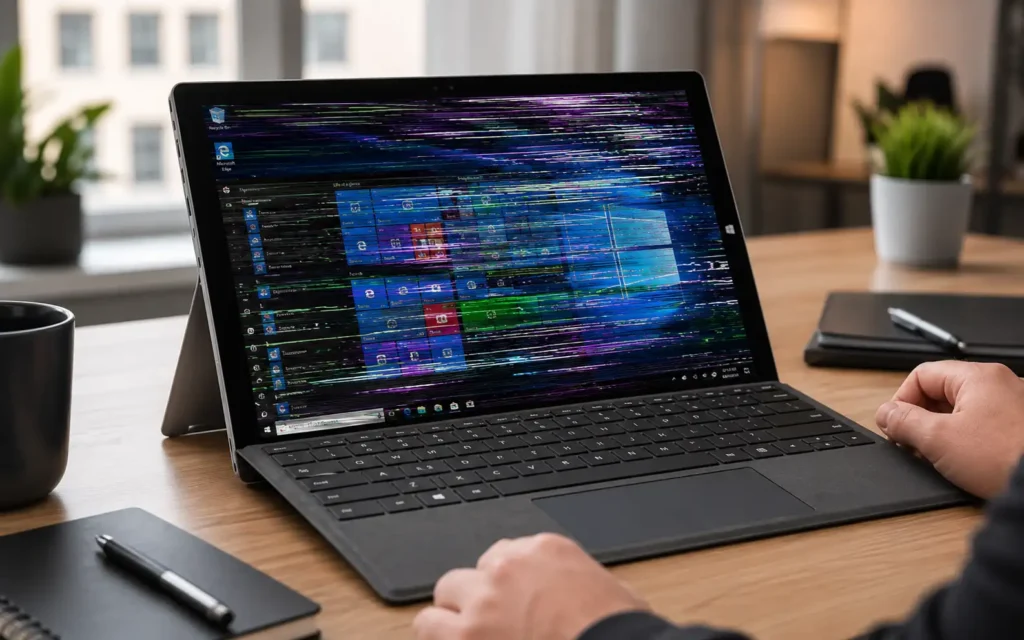
A scrambled screen indicates that the screen is not displaying images properly. Rather than a secure screen, you might see visual distortions that make it difficult or impossible to use.
The users talk about the problem in various terms:
- Horizontal or vertical lines across the screen
- Rapid screen shaking
- Ghost images
- Distorted text
- Flickering brightness
- Unclear icons and windows
- Temporary black screens
In some cases, the problem only becomes apparent after 20-30 minutes of use and in others, it is there after booting.
A lot of people will assume that if there’s a graphics driver issue, then there’s a problem with the graphics driver; however, a lot of times, there’s a lot more to it than that.
Why Is My Surface Pro 4 Screen Scrambled?
This can be caused by several things.
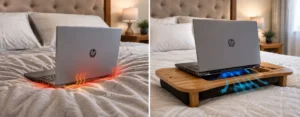
Overheating
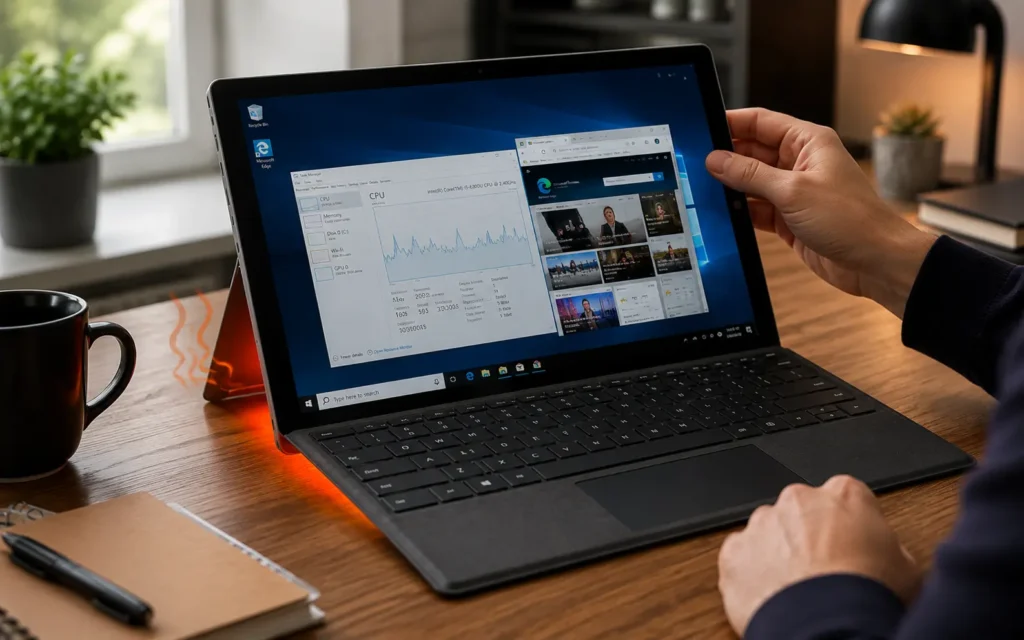
One of the most frequent causes is heat.
Some versions of the Surface Pro 4 are not equipped with a fan and can get very hot during intense usage.
Overheating may cause:
- Screen flickering
- Image distortion
- Ghosting effects
- Temporary display instability
Heat may be the issue if the problem does not occur until after the device has been used for a long time.
Surface Pro 4 Flickergate
Flickergate is one of the most famous causes that is a hardware defect.
This problem was reported by Surface Pro 4 users all over the world. Over a number of years, the performance of the display will be affected, leading to serious flickering and screen distortion.
Signs include:
- Violent screen shaking
- Distorted visuals
- Show deterioration which gets worse with time.
Sadly, there is no software solution to real Flickergate situations.
Outdated Graphics Drivers
Display issues may also be caused by outdated or corrupted Intel graphics drivers.
This frequently occurs following:
- Windows updates
- Driver conflicts
- Failed installations
Windows Update Conflicts
Unfortunately, some Windows updates can cause issues with display drivers, even after installation.
Symptoms could start right after you upgrade your system.
Incorrect Display Scaling
Use high DPI settings; this can sometimes cause glitches in the display.
If you have incorrect scaling settings, Windows might not display images correctly.
Aging Hardware
The Surface Pro 4 was released a long time ago.
By 2026, components that age will be:
- Display connectors
- Internal cables
- Thermal paste
- The information board as such.
May start to deteriorate.
Common Symptoms You May Notice
Symptoms vary with different users.
Be on the lookout for the following warning signs:
Screen Shaking
The display flashes quickly and is hard to see.
Flickering
Brightness continuously changes.
Ghost Images
Previous windows are still in the background.
Distorted Colors
Colours will be washed out or inaccurate.
Blurred Text
The font becomes hard to read.
Temporary Black Screens
May flash briefly black before returning.
Screen Jumping
Random screen flashes. The display randomly moves images.
When many symptoms occur concurrently, it is a strong sign that the problem needs to be immediately troubleshot.
Quick Fixes to Try First
Don’t just assume that there is a hardware problem; try the following solutions.
Restart Your Surface Pro 4
The basic restart can remove temporary software glitches.
Steps:
- Save your work.
- Click Start.
- Select Power.
- Click Restart.
Test if the problem still exists.
Disconnect External Accessories
There are times when a problem of display conflict may arise when using external devices.
Temporarily disconnect:
- External monitors
- USB hubs
- Bluetooth adapters
- Docking stations
Repeat testing.
Let the Device Cool Down
If your Surface Pro 4 feels hot:
- Shut it down.
- Remove the charger.
- Let stand for 20-30 minutes.
- Restart the device.
An improved display means that overheating is probably a problem.
Reduce Screen Brightness
Reducing the brightness can help to decrease the stress on ageing display components.
Go to:
Change brightness: Settings → System → Display → Brightness
Reduce it to around 50–60%.
Update Windows and Surface Drivers
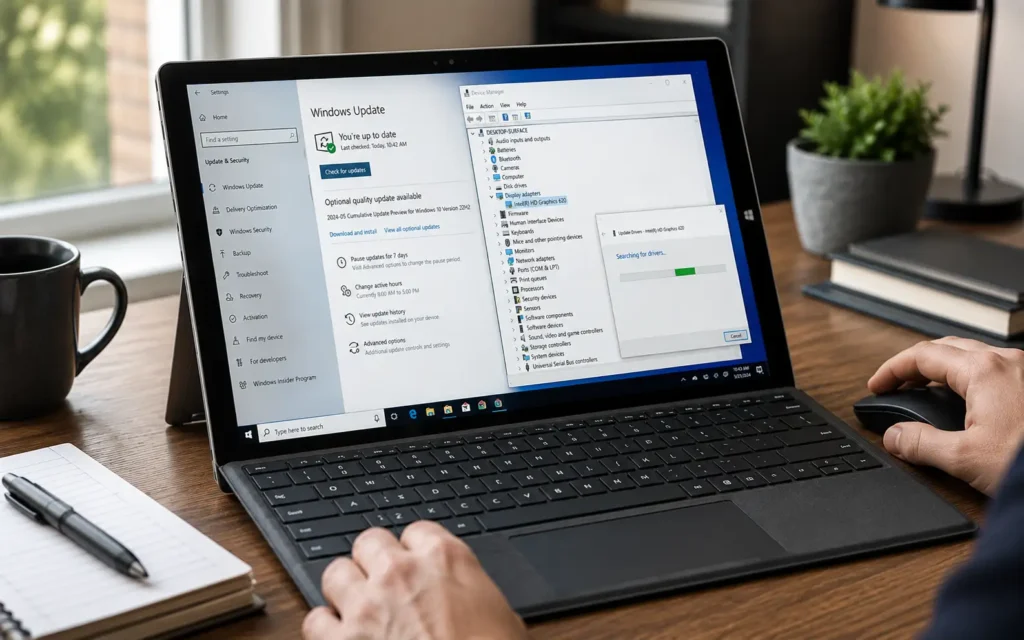
It’s crucial to keep software updated.
Check Windows Update
Go to:
Check Windows Update
Go to:
Settings → Windows Update → Check for updates
Install:
- Security updates
- Feature updates
- Optional driver updates
Turn it on again after that.
Update Intel Graphics Drivers
Intel graphics driver is responsible for rendering images on the display.
To update it:
- Press Windows + X.
- Open Device Manager.
- Expand Display adapters.
- Right-click Intel HD Graphics.
- Select Update driver.
Choose:
Search automatically for drivers
Install all available updates.
Install Surface Firmware Updates
Microsoft provide updates regularly for Surface.
These updates could enhance:
- Display stability
- Thermal management
- Hardware communication
Always install official Surface updates when available.
Check Display Scaling Settings
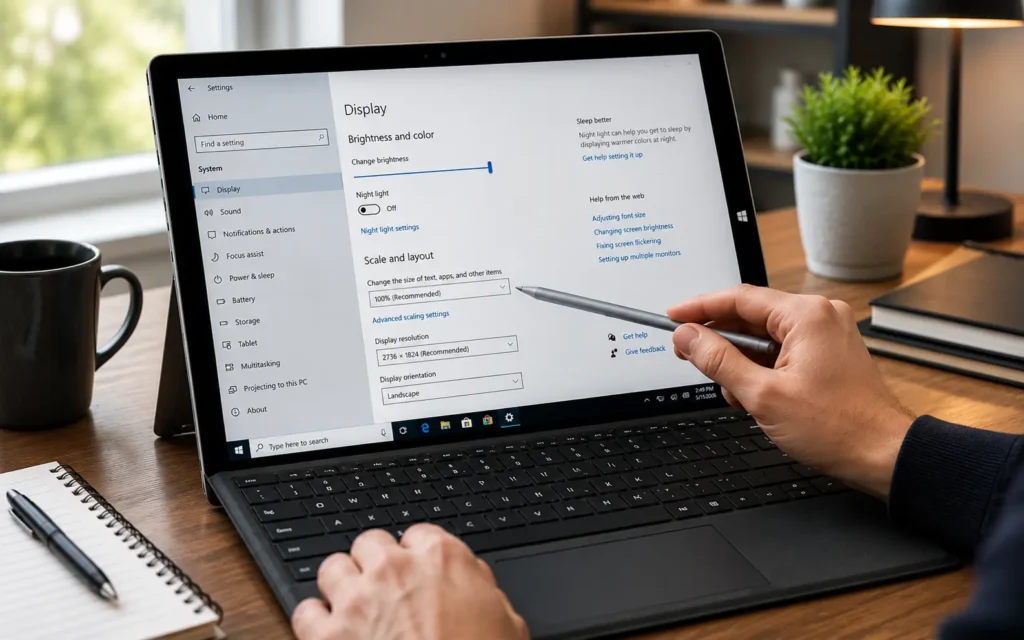
Incorrect scaling settings can trigger visual issues.
Reset Scaling
Go to:
Settings → System → Display
Under Scale, select:
100% (Recommended)
Prevention: Do not use unusual scaling values unless they are required.
Check Screen Resolution
Select the recommended Display Resolution.
Having an incorrect resolution can create:
- Blurry text
- Distorted icons
- Unstable visuals
Perform a Two-Button Shutdown
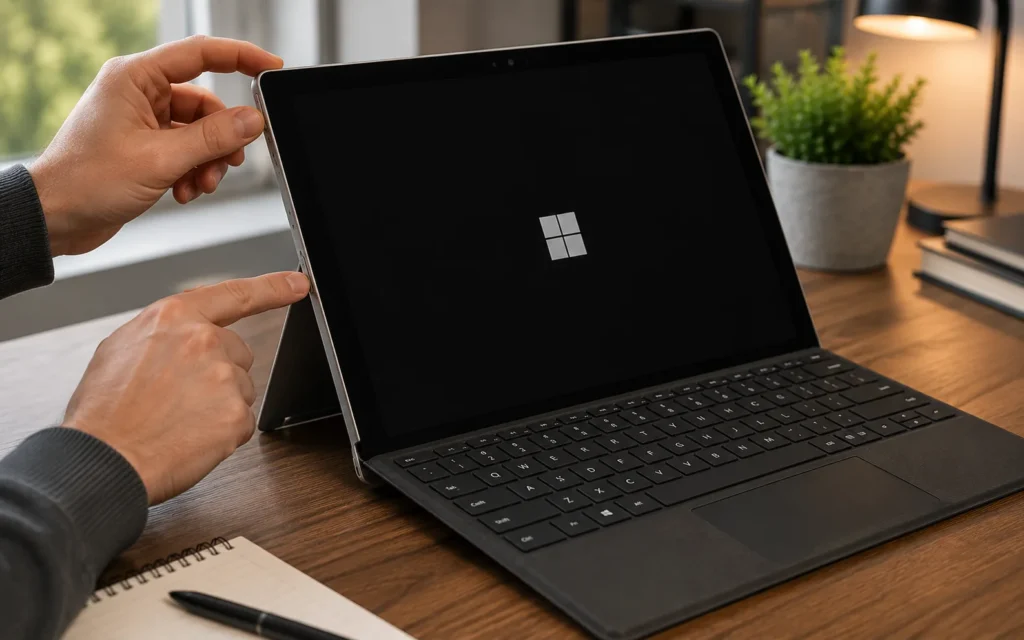
For some kinds of surface problems, a two-button shutdown is recommended by Microsoft.
This does a deeper reset than a normal restart.
How to Perform It
- Hold the Power button down for 30 seconds.
- Release it.
- Press and hold down Power + Volume Up for 15 seconds.
- Release both buttons.
- Wait 10 seconds.
- Return on the device.
The mechanism updates the internal communication of hardware and can also remove temporary display problems.
Why It Helps
To reset, press any of the following:
- Hardware conflicts
- Firmware glitches
- Driver communication errors
If it does not get fixed after this, other testing will be needed.
Disable Adaptive Brightness
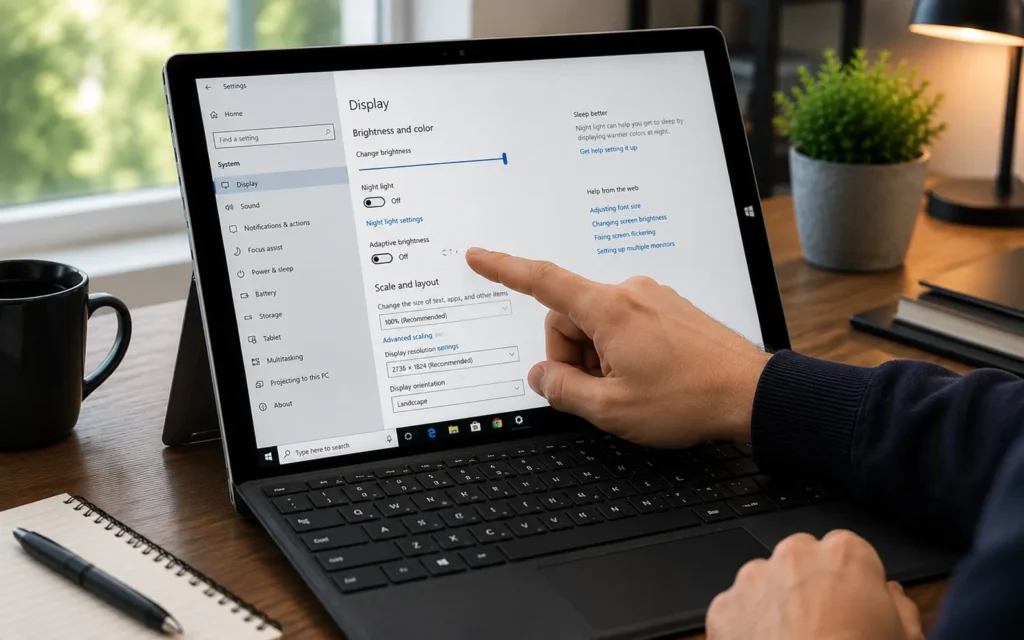
Adaptive brightness uses surround light to adjust your screen. This will help the battery life but can also cause flickering or unstable brightness on older devices.
How to Turn It Off
- Open Settings.
- Select System → Display.
- Locate Brightness settings.
- To disable, select Disable, Change brightness when lighting changes.
Turn it back on after this and see if the problem goes away.
Why It Helps
The ambient light sensor can be unreliable if the Surface Pro 4 is aged. When adaptive brightness is turned off, the display won’t adjust unnecessarily and is less likely to cause display instability.
Test in UEFI Mode
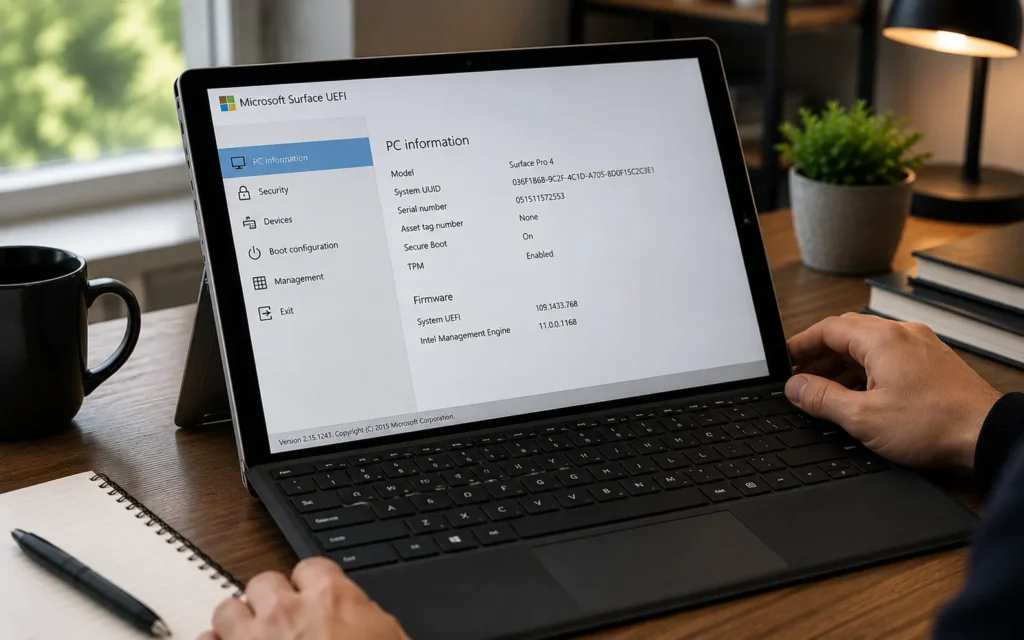
The simplest way to find out if this is a software or hardware problem is to test the device in UEFI mode.
UEFI is an embedded firmware interface that runs before Windows boots up.
If you still see the screen flickering in UEFI, your problem is likely to be hardware-related.
How to Enter UEFI
- Completely shut down your Surface Pro 4.
- Hold down the Volume Up button.
- Hold down the Volume Up and press the POWER button.
- At the Surface logo, release the Power button. Press the Power button when the Surface logo appears.
- Press and hold the Volume Up button until the UEFI screen is displayed.
What to Observe
Observe the display for a couple of minutes.
Look for:
- Screen shaking
- Horizontal lines
- Ghosting
- Distorted images
- Brightness fluctuations
If this is the case, then it is likely a software problem.
However, if the display remains scrambled, this is probably a hardware problem.
Is This the Surface Pro 4 Flickergate Problem?
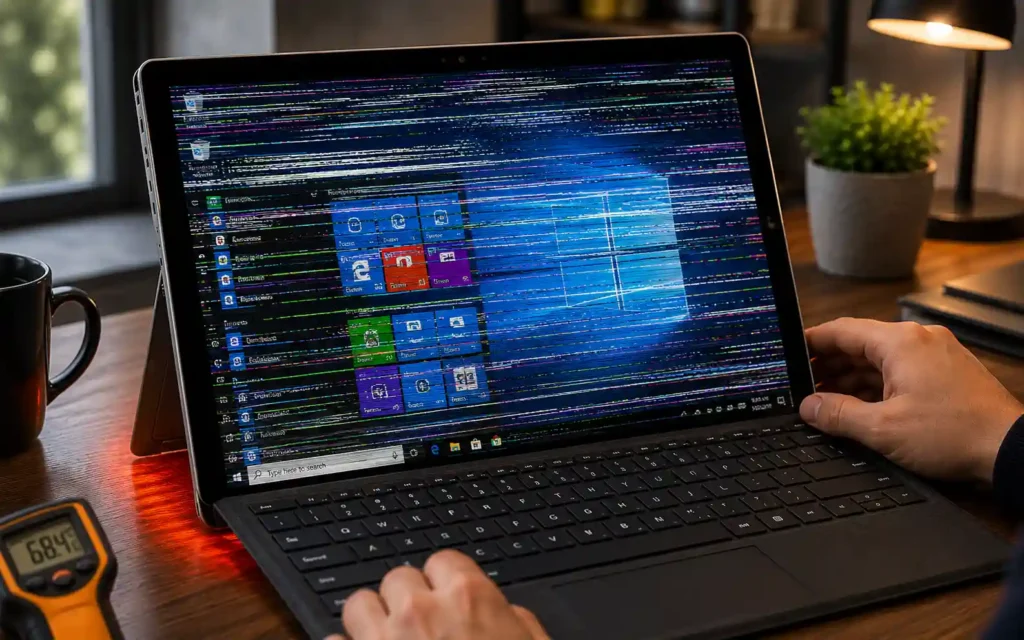
There’s a strong possibility.
The Surface Pro 4 flickergate issue was among the most widely reported issues with the tablet.
Users reported that after years of regular use, they suffered from extremely poor performance of their displays.
What Is Flickergate?
Flickergate is the name given to a hardware flaw in which extended operating temperatures cause display damage.
The screen eventually becomes unstable and starts to exhibit the following symptoms:
- Severe flickering
- Screen shaking
- Image distortion
- Ghosting
Sadly, this can only get worse with time.
Warning Signs
You may have Flickergate if:
- The problem begins when using it for 15-30 minutes.
- The device heats up to a very high level.
- The device can be cooled temporarily to overcome the issue.
- Drivers have been brought up to speed, but there’s still a problem.
- UEFI also exhibits a flickering effect.
When all of these symptoms are present, the odds of hardware failure are highest.
Explore Also: Stagelight MacBook Pro: Causes, Fixes, Affected Models & Repair Costs (2026 Guide)
How to Confirm It’s a Hardware Issue
Knowing the difference between hardware and software problems can save you a considerable period of time and money.
Signs of a Hardware Failure
If you find that you are experiencing any of the following issues, then you might have a hardware problem:
- A screen flickers within the UEFI.
- This gets worse in hot weather.
- The problem occurs even after resetting Windows.
- The display vibrates all the time.
- Cooling is only a temporary measure.
Signs of a Software Problem
If any of the following occur, the problem could be software:
- It began with a Windows update.
- It is a temporary issue that can be rectified by driver updates.
- The problem only seems to occur within Windows.
- The Safe Mode runs as it normally does.
- External monitors work without issues.
When in doubt, try out both of the options before deciding on a repair.
Should You Replace the Screen?
This will depend on the condition of your device as a whole.
Replace the Screen If:
- The battery is still good.
- The instrument suits your day-to-day requirements.
- It is only used for minor jobs.
- Repair costs are fairly manageable.
Consider Upgrading Instead If:
- The LifeSpan is short.
- Performance feels slow.
- There are several hardware issues.
- The repair expense is high.
Due to the Surface Pro 4’s age, in some cases, a significant repair can’t be done in a financially sound manner.
Surface Pro 4 Repair Cost in 2026
The cost of repairs differs from one area to another, and based on the service provider.
Below are the estimated 2026 costs.
| Repair Option | Estimated Cost |
|---|---|
| Third-party screen replacement | $120–$220 |
| Refurbished display assembly | $100–$180 |
| DIY repair kit | $70–$150 |
| Professional diagnostic service | $30–$60 |
Although it should be taken into consideration that DIY repairs can be tricky, as the Surface Pro 4 was not designed to be easily disassembled.
Attempting to repair without the proper tools can cause further damage.
Is Surface Pro 4 Still Worth Repairing in 2026?
It depends on your usage.
The Surface Pro 4 has now been called an “aged” device.
Can still manage:
- Web browsing
- Microsoft Office
- Video streaming
- Online classes
- Basic productivity tasks
Today’s workloads, though, can reveal their shortcomings.
Repairing Is Worth It If:
- It’s only used for daily activities.
- The cost of repairs will be less than $150.
- The health of the batteries is okay.
Repairing Is Less Worth It If:
- The cost of the repair is more than $200.
- The battery’s performance is declining.
- Demanding applications are required.
When to Upgrade Instead of Repair
In some cases, purchasing a newer device is more of a value.
Rentals are not recommended, but good upgrade options are:
- Surface Pro 9
- Surface Pro 10
- Surface Pro 11
Benefits include:
- Better performance
- Improved battery life
- Better thermal management
- Modern processors
- Longer software support
If the Surface Pro 4 suffers from several hardware problems, it could be better to upgrade again in the long run.
How to Prevent Future Display Problems
These practices can help your device last longer, even if they don’t prevent any problems from occurring.
Keep Temperatures Under Control
Avoid placing your Surface Pro 4 on:
- Blankets
- Sofas
- Pillows
Make use of hard surfaces for adequate ventilation.
Update Drivers Regularly
Install:
- Windows updates
- Firmware updates
- Graphics drivers
Using outdated software will cause unnecessary display problems.
Avoid Heavy Workloads
Slow down – Minimise:
- Long gaming sessions
- Heavy video editing
- Multiple intensive applications
Older equipment can be hard to handle with complex jobs.
Lower Screen Brightness
Brightness should be maintained at 50-70 percent to minimize the amount of heat generated.
Clean Ventilation Areas
A dust layer can accumulate and cause heat build-up within the device.
Ensure external vents are cleaned from time to time.
Final Verdict
Don’t worry if the screen of your Surface Pro 4 is scrambled. Other cases can be resolved by performing simple troubleshooting, including driver updates, adjusting the display or doing a two-button shutdown.
If it still occurs in UEFI mode and gets worse when you heat up, though, then you’ve got a Flickergate or another hardware problem.
From there, you’ll have to determine if it’s a practical choice to repair or if it’s better to upgrade to a newer Surface model.
For a lot of people in 2026, it is possible to save the device for a longer period if they invest in a minor repair. However, if other factors are ageing, that may make it a better, long-term investment to buy a newer Surface.
Read Also: How to Check Laptop Specifications on Windows 11
Best Laptops Under $500 in 2026 — Budget Picks Compared
Frequently Asked Questions
Why is my Surface Pro 4 screen scrambled?
The most common causes include overheating, an out-of-date driver, old hardware, or the notorious “Flickergate” problem.
Can Surface Pro 4 Flickergate be fixed?
True Flickergate cases won’t be fixed with software. This typically requires hardware repair or replacement of the screen.
How do I know if my screen is physically damaged?
If it flickers in UEFI mode, then it is probably a hardware problem.
Is repairing a Surface Pro 4 worth it in 2026?
Yes, if the repair cost is not high and the device is still working to your daily productivity needs.
Can overheating cause display issues?
Yes. If the temperature turns out to be too high, it can cause the images to flicker, distort and/or make the screen unstable.