When you want to install a fresh operating system or new software, update your hardware or troubleshoot performance problems, you’ll need to know what to look for and what is installed. Fortunately, there are several natively included/combined tools in Windows 11 that will help you view relevant system information without having to install any third-party application.
You can find out what processor you’re using, what RAM you have, what graphics card you use, and what device type you use, among other things, all within a few clicks. This guide will show you several methods to check your Laptop Details and how each method works.
How Do I Check Laptop Specifications on Windows 11?
The easiest method to see laptop specs on Windows 11 is to navigate to Settings > System > About. It affords you a display for your processor, the amount of RAM currently installed, your device name, system type and Windows version. For more advanced hardware info, you can use System Information, Task Manager, or Command Prompt.
Why Knowing Your Laptop Specifications Matters
A lot of users do not consider what sort of system they’re working with until they have an issue or require installing a particular program. Knowing what hardware you have can, however, guide you in making decisions and prevent compatibility problems.
By knowing your laptop specifications, you can help yourself:
- Determine if software is compatible with system requirements
- Identify upgrade options for RAM and Storage
- Troubleshoot performance-related issues
- Check game and graphics systems compatibility
It doesn’t matter if you’re not a technical user; having access to this information will save you time when asking questions for help or finding information about upgrades.
What Information Can You Find in Your Laptop Specifications?
When you take a look at your laptop specifications, you’ll probably discover that from the information provided, you see the following:
- Processor (CPU)
- Installed RAM
- Graphics Card (GPU)
- Storage Capacity
- Device Model Number
- System Type (64-bit or 32-bit)
- Windows Edition and Version
These details provide a complete overview of your device’s hardware and operating system.
Tools You Can Use to Check Laptop Specifications
| Tool | Best For |
|---|---|
| Settings | Quick overview of system details |
| System Information | Complete hardware information |
| Task Manager | Monitoring performance and resource usage |
| DirectX Diagnostic Tool | Checking graphics and display details |
| Command Prompt | Viewing detailed system reports |
| Windows Terminal | Running system commands in a modern interface |
You have a few built-in tools in Windows 11 to see information about the hardware and system. The table below emphasizes which tool works best under various circumstances and will guide you in selecting the most efficient tool for a specific job.
Method 1: Check Laptop Specifications Through Settings
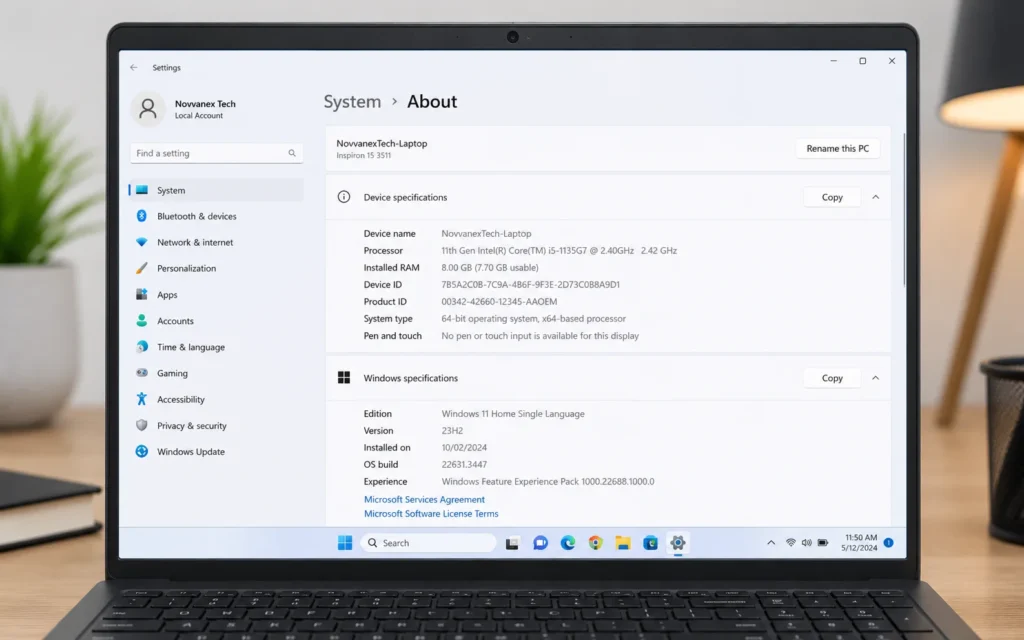
If you’re just looking for a quick overview of your system, the Settings app is the place to begin.
Open the About Section
Click the Start Menu and select Settings. From the left sidebar, choose System and scroll down to About.
View Device Specifications
The information about lists important details about your laptop, such as processor type, memory installed, device name and system type. You’ll also get information about the Windows version that is currently installed on your computer.
Simple and easy to read, with the important information provided first, it is ideal for everyday users.
Method 2: Use System Information for Detailed Hardware Details
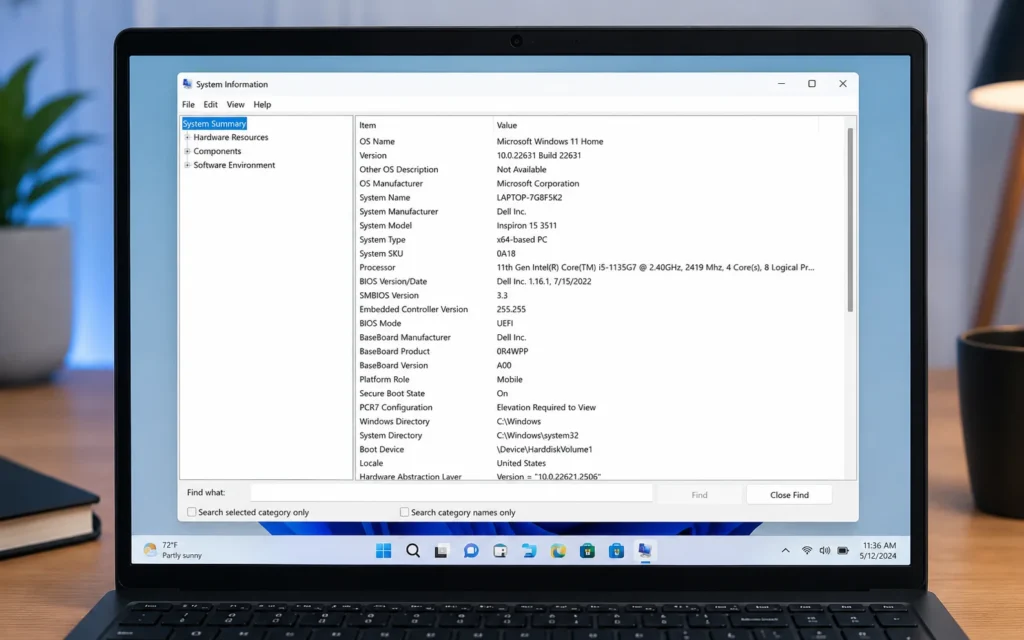
When it comes to seeing the full specs of your laptop, System Information is one of the best tools for Windows 11.
Launch the System Information Tool
Simply hit Windows + R on the keyboard to open the Run dialog box. Enter msinfo32 and then press Enter.
Review Comprehensive System Data
The System Information window contains a lot of information concerning your device. Here, you can find data about your processor, motherboard, BIOS version, memory you have, memory slots you can fill, storage devices you have, and more.
This is similar to the Settings app, except that it allows you to see more details about your system and is sometimes used by computer/service technicians in order to identify hardware issues.
Find Your Laptop Model Number
The most helpful information that is available in System Information is the System Model field. This indicates the exact model number given by the manufacturer, which helps in downloading drivers, locating compatible upgrades, or seeking technical support.
Method 3: View Hardware Information Through Task Manager
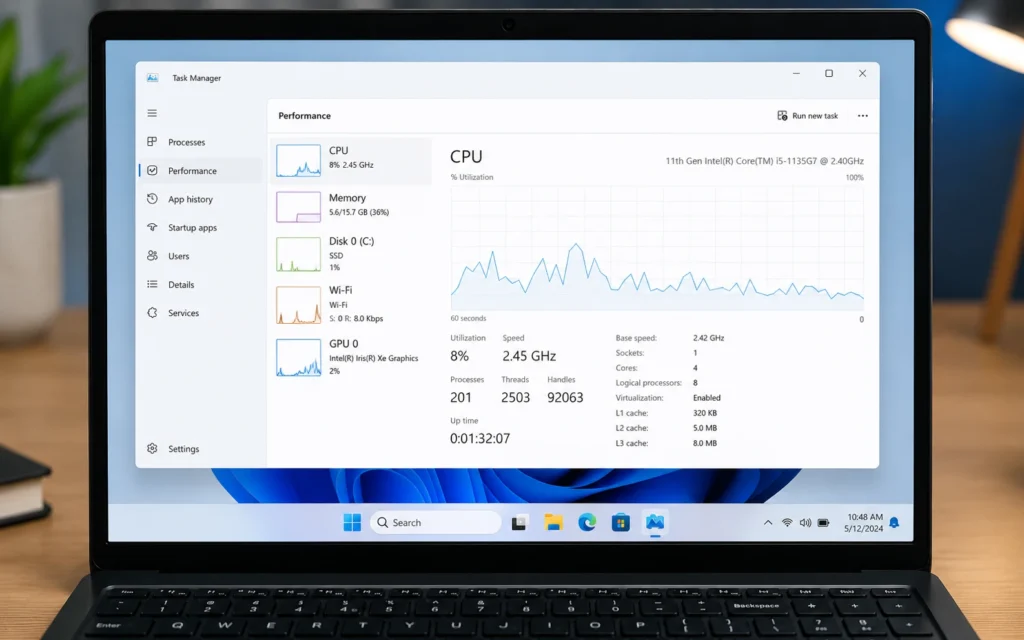
Most of the time, people use Task Manager to terminate unresponsive programs, but it will sometimes give them some hardware data.
Open Task Manager
You can also open Task Manager directly by pressing Ctrl + Shift + Esc.
Access the Performance Tab
The Task Manager will open, so select the Performance tab. Seen here are individual sliders for the processor, memory, storage drives, network adapter, and graphics hardware.
Monitor System Resources in Real Time
The Performance tab not only presents the hardware configuration but also indicates the usage. This is especially helpful when diagnosing slow performance or resource usage while using applications.
Let’s say your system slows down when running multiple programs; you can easily know if you are running out of CPU, RAM, or storage.
Method 4: Check Graphics Card Information Using DirectX Diagnostic Tool
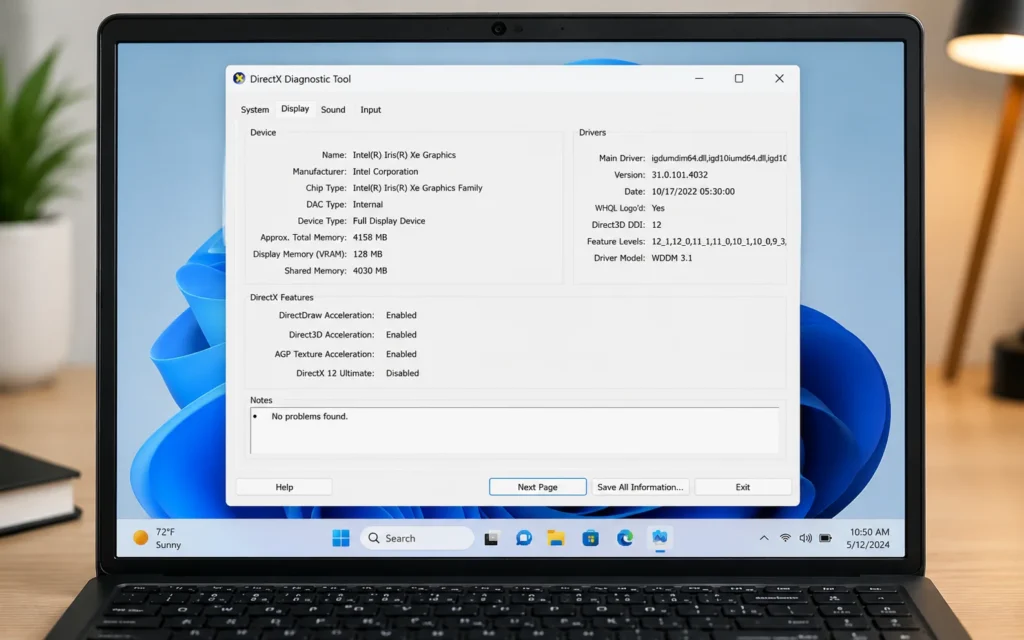
It is crucial to know the details of your graphics card if you are interested in playing games, making videos, or using applications that require graphics. This proprietary tool for Windows 11 is called the DirectX Diagnostic Tool or DxDiag.
Open the DirectX Diagnostic Tool
Right-click on Windows and then select Run. Open the Run dialog box by pressing Windows + R. In the Start typing box, enter dxdiag, then click OK or press Enter.
View Graphics Hardware Details
After launching the tool, click the Display tab. This will display your graphics card, display memory, graphics card driver version and supported DirectX.
In the case of a laptop with built-in and dedicated graphics, you might have more than one display tab. This is helpful if you need to see if your device supports some games and/or creative software.
Check Your DirectX Version
DxDiag will also show you the version of DirectX that you have installed. This information may be needed during troubleshooting problems regarding graphics and graphics-related software installations that rely on particular features of DirectX.
Method 5: Use Command Prompt to Check System Specifications
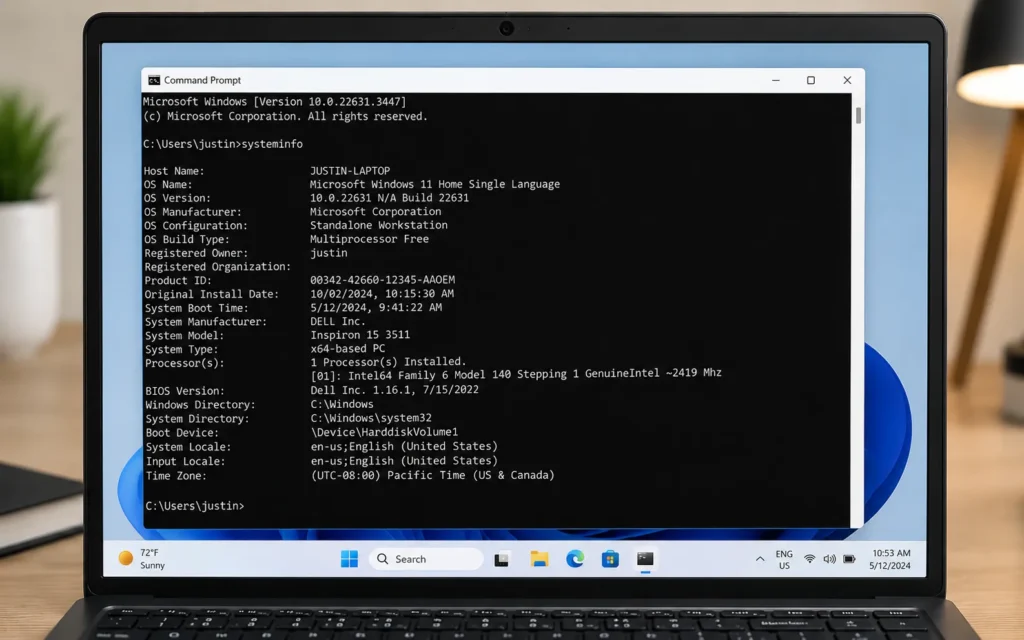
If you prefer using the command line, Command Prompt can provide you with a wealth of information about your system.
Open Command Prompt
To open the command prompt, click the Start Menu, type Command Prompt and then open it.
Run the System Information Command
Now type the following command and hit the Enter key:
systeminfo
Review the Results
Windows will produce a report with details of your operating system, processor, memory installed, manufacturer of the system, BIOS version and your network configuration.
The information is displayed in a text-based format, but you still get a pretty comprehensive picture of what’s going on in your laptop’s hardware and software.
This is a very handy way to quickly copy the system details when troubleshooting or providing technical support.
Method 6: Check Laptop Specifications Using Windows Terminal
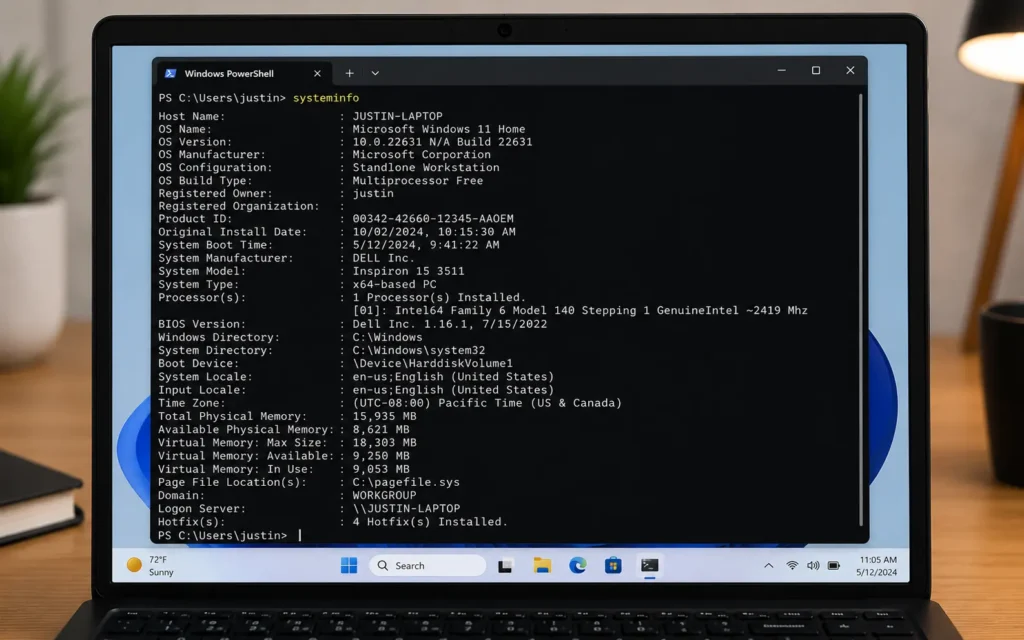
Windows Terminal is a single unified command-line interface that contains several environments. Cygnet’s already have Terminal installed, so you can obtain information about your system without starting any external applications.
Launch Windows Terminal
Right-click on the Start button and click Windows Terminal.
Run a System Information Command
The same command above can be used:
systeminfo
Important information regarding your laptop, like hardware info and operating system details, is shown.
Windows Terminal offers a more streamlined experience than Command Prompt, offering a more convenient and streamlined experience for users who often work from the command line.
Which Method Is Best for Checking Laptop Specifications?
It would depend on what type of information you’re looking for.
- Settings are best for a quick overview.
- System Information provides the most detailed hardware breakdown.
- Task Manager is useful for monitoring performance in real time.
- DxDiag focuses on graphics and display-related information.
- Command Prompt and Windows Terminal are ideal for advanced users who prefer command-line tools.
For most users, it seems that the Settings app and System Information utility are all that is required.
Common Problems When Checking Laptop Specifications
Sometimes the information presented on the Windows might be incomplete or confusing. Generally speaking, the problem can be solved easily.
Graphics Card Information Is Missing
This is commonly seen when applications lack up-to-date or properly configured graphics drivers. Update your graphics driver, and it’s most likely that the problem will be resolved.
Installed RAM Appears Incorrect
In such a case, Windows will be showing less usable memory than it should, meaning that some of the RAM is being used for integrated graphics or system hardware.
Hardware Details Don’t Match Manufacturer Specifications
Often, multiple configurations are available for a laptop model from the same manufacturer. When checking specific devices, always check the actual configuration and not just the general specifications that are read on the Internet.
Certain Components Are Not Listed
Installing the latest device drivers and running Windows Update should enable Windows to identify hardware components with more accuracy.
Final Thoughts
Many people don’t know how easy it is to check the specifications of a laptop on Windows 11. If you want to see how much RAM it has, then you’ll want to know how much RAM it contains, or if you want to find out a complete overview of the hardware of your computer, Windows offers some built-in tools that make it easy to do so.
Most users will want to use the Settings app if that is their fastest method. System Information is the best solution if you have to know in detail your processor, motherboard, graphics, or the model of your system.
Knowing your laptop’s details will let you make informed choices about the software programs that you install, the hardware that you can upgrade, and how to troubleshoot and enhance its performance.
Check also: NVIDIA RTX Spark | Specs, Features, and Everything You Need to Know in 2026
Multipoint Control Unit (MCU) | Why It Still Matters The Complete Guide for 2026
Frequently Asked Questions
How do I check my laptop RAM on Windows 11?
To see the total RAM installed in your laptop, click Settings > System > About. Alternatively, get more information from Task Manager > Performance > Memory.
How can I check my graphics card in Windows 11?
Open Task Manager and then select the Performance tab, or click on Run and enter dxdiag to get graphics card info.
What is the fastest way to view laptop specifications?
The fastest method is opening Settings > System > About, where Windows displays the most important hardware and operating system information.
Can I check laptop specifications without installing software?
Yes. Windows 11 has built-in tools like Settings, System Information, Task Manager, DxDiag, Command Prompt, etc., to give detailed information about the system without the need for any additional software.
How do I find my laptop model number?
Go to the Open System Information screen by entering msinfo32 into the Run dialog box. The System Model field will display your laptop’s exact model number.