Online videos are an integral part of the work, learning and entertainment that we do and when we suddenly get a “This video file cannot be played. (Error Code: 232011)” message, it can be frustrating. This mistake can show up when you’re streaming movies, viewing embedded videos, or checking out online courses via your web browser.
When looking for error 232011 or what is error code 232011, the problem is most likely connected to the browser, internet connection or website where the video is being displayed. In most instances, it can be fixed with just a few simple troubleshooting tips.
This article is about the error code 232011 – what it means, why it is happening, and how to resolve it on desktop and mobile devices in the best way.
What Is Error Code 232011?
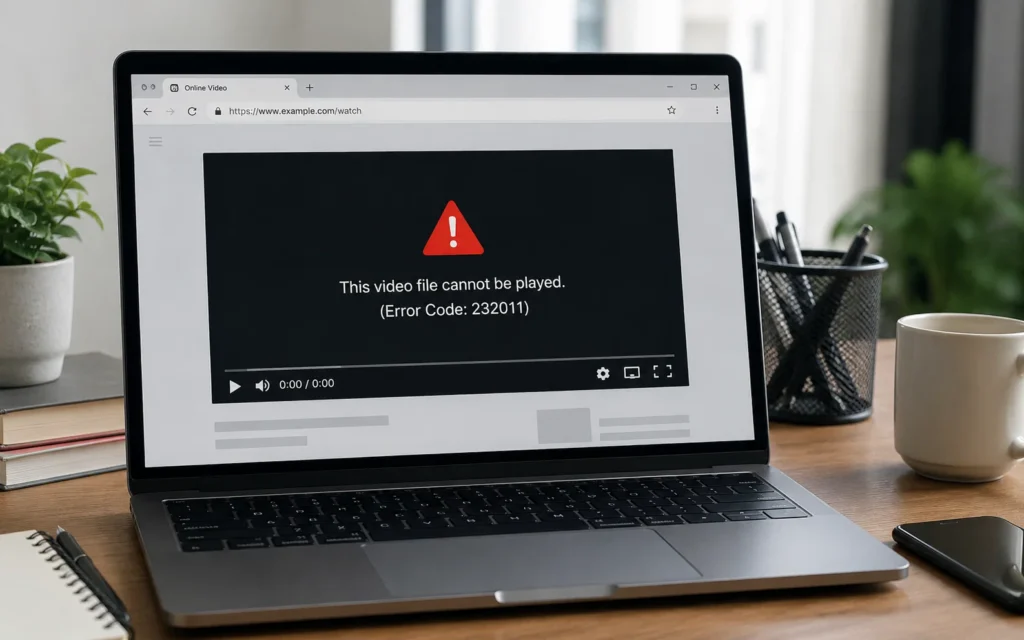
Error code 232011 is a video playback error that occurs when a browser is unable to load or play an online video in the browser successfully. The player does not play the video, but rather shows an error message since it is unable to create a suitable connection to the media source.
Error 232011 is generally confined to video playback, whereas OS errors are far more general. While your browser and the rest of the site may load fine, the video will not load.
What Does Error Code 232011 Mean?
It’s really as simple as that: the browser failed to finish the process of playing the video. The problem doesn’t necessarily mean the video file is damaged. Rather, the browser cannot access, load, or decode the video properly.
The website or media player may display the following message:
- This video file cannot be played. (Error Code: 232011)
- Video playback failed
- It’s time to learn how to load the media.
The message can be different, but the problem is the same: The video playing request failed.
Where Does Error 232011 Usually Appear?
This error isn’t limited to one browser or website. It can be shown on streaming sites, educational sites, embedded video players, news sites and on other sites that provide online video content.
The error can come up when a playback issue happens either in the browser or on the site, regardless of whether you’re on Google Chrome, Microsoft Edge, Mozilla Firefox or Safari.
Is Error 232011 a Browser or Website Issue?
It depends on the reason for the interruptions.
Many times the browser itself is to blame because of corrupted cache files, incompatible extensions, outdated browser or settings. But if the website is temporarily down or the video file isn’t available in a proper format, the problem can also lie with the website.
This is why it is crucial to investigate the problem with your browser and the site before you decide where the trouble is.
Why Does Error Code 232011 Happen?
Several reasons may cause error 232011, but the most frequent ones fall into one of these categories:
Corrupted Browser Cache and Cookies
Video resources may be damaged or outdated in the browser cache which then may cause problems with playing the video.
Slow or Unstable Internet Connection
Communication with the streaming server can be interrupted due to poor or inconsistent broadband access before even playing the video.
Browser Extensions
Online video players can sometimes block resources provided by ad blockers, privacy extensions, ad/script blockers, and other extensions.
Outdated Browser
Older versions of browsers may not be compatible with the latest video technologies and may cause problems with playing some videos on websites.
VPN or Proxy Conflicts
Certain VPNs and proxy servers cause problems with secure video streaming or block access to certain websites.
Hardware Acceleration Issues
Online videos may not play correctly if they are not supported by the graphics driver or hardware acceleration.
Website or Server Problems
In some cases, it’s not your device. An error code 232011 may also occur if there is a server outage, media files are corrupted, or it is a temporary maintenance.
How to Fix Error Code 232011
Don’t worry if you are experiencing error 232011. Most of the time, it is not the fault of the device, but rather a problem with the browser settings, temp data, or network. Don’t just jump to solutions; try the following fixes in turn. This is a way of detecting the real problem and can get videos playing up sooner.
Refresh the Webpage
Sometimes the error is simply the result of a temporary loading issue. The video can be resumed by refreshing the page if the browser cannot make a proper connection to the video server.
Refresh the browser page (or F5 on Windows). To refresh the web page without loading any previously cached resources, do a hard refresh (Ctrl + F5 on Windows or Cmd + Shift + R on Mac).
Check Your Internet Connection
An internet connection is required for online video playback. Sometimes video streaming may be interrupted due to slow network connections, even if the websites appear to be loading fine, causing error code 232011 to be generated.
Try another streaming site or online video. If there is a lack of video buffering or an inability to load the video, restart your router, reconnect to WiFi, or use a wired connection if available. Users can also switch between WiFi and cellular connections to see if it is WiFi that is causing the problem.
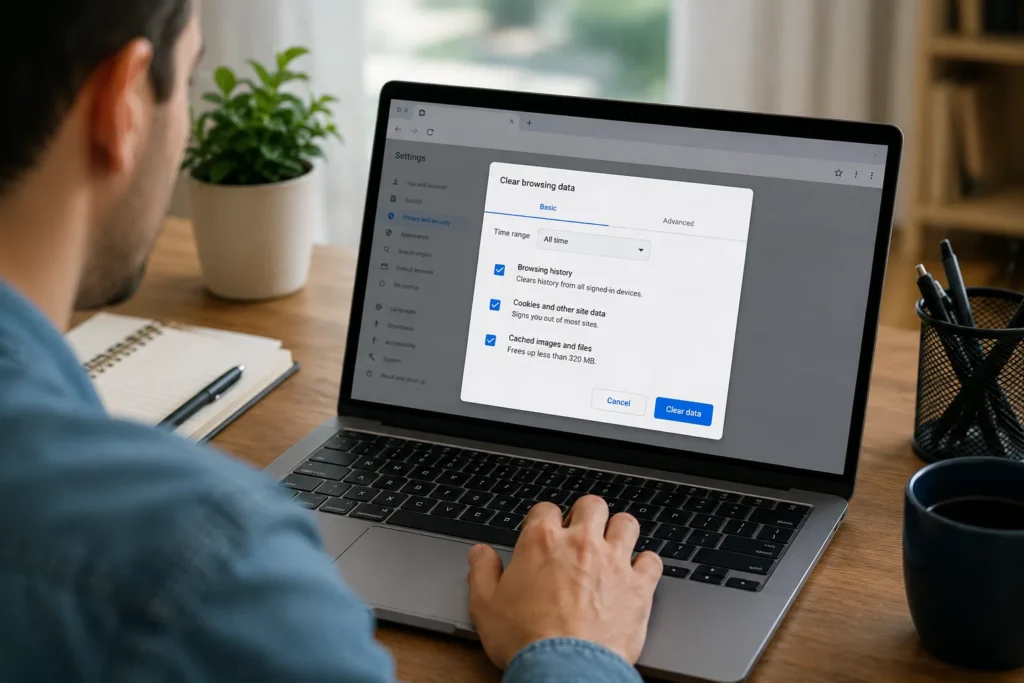
Clear Browser Cache and Cookies
Cached files and cookies make a website load faster, but can become outdated or corrupted over time. In such cases, the browser may not be able to get the newest video resources, which may cause errors in playing videos.
Clear out cached pictures, files and cookies from your browser settings. Restart the browser and return to the page to download new data about the website. It is one of the best solutions to clear error 232011.
Disable Browser Extensions
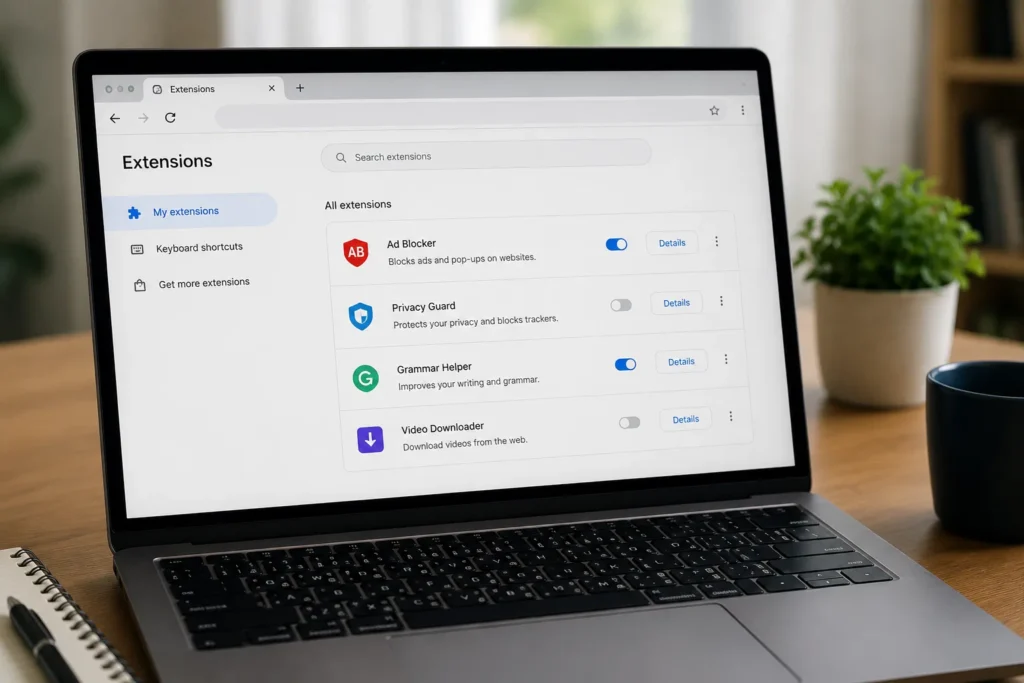
Extensions enhance browsing, and some may have unintended consequences with embedded video players. Sometimes things that are needed for streaming are blocked by ad blockers, privacy tools, script blockers and download managers.
Switch off recently installed/exploratory extensions or media and refresh the page. If the video runs, turn on the extensions one by one to locate the extension that is causing the conflict.
Update Your Browser
New web technologies are released on a frequent basis on modern websites and older versions of the browser do not always support the technologies. An outdated browser can therefore cause problems with compatibility and video playback failures.
Update the browser using its settings, download the new version and restart the browser. As well as resolving playback issues, browser updates enhance security and overall performance.
Turn Off Hardware Acceleration
While hardware acceleration can help your graphics card handle video better, some older video drivers or conflicts can cause it to perform worse.
If videos freeze, display a black screen, or keep showing error 232011, go to your browser settings and disable the hardware acceleration and restart your browser. If the playback is improved, you can enable it later by updating the graphics driver.
Disable VPN or Proxy Services
Although they help to provide privacy, VPNs and proxy servers can sometimes hamper secure video streaming. Additional sites also limit traffic from particular VPN servers or areas.
If you have a VPN, disconnect from it and if you have a proxy, remove the setting, then refresh the page. If the video begins to work, switch to a different VPN server or go without it for that site.
Try Another Browser
If the same video that worked in one browser doesn’t work in another, then the problem may be with the browser.
If the video is fine with other browsers, the problem may be with your original browser’s settings, stored information, or browser extensions. If the error persists in all locations, it could be either your internet connection or the website that you are using.
Restart Your Device
Software glitches can cause problems with browsers and network communication. Restarting your computer, smartphone, or tablet clears temporary processes and refreshes the operating system.
Restart your device, then re-open your browser and test the video before proceeding to more advanced steps.
Check Whether the Website Is Down
If all of the above remedies have failed, the problem could lie with the other party. Occasionally, websites have to disconnect or maintain their servers and host their videos. Sometimes, video hosting and server issues arise on websites.
Open the same page on another device or have someone else access the internet with a different connection to check it out. If the error is pertinent to more than one person, the website owner must solve the problem before the video can be available once again.
Most users can correct error code 232011 without a reinstall of their browser or other advanced changes to their system by following these troubleshooting steps. If none of these solutions work, troubleshooting problems in the browser may be able to help you find browser-specific settings that might be causing the problem.
How to Fix Error 232011 in Different Browsers
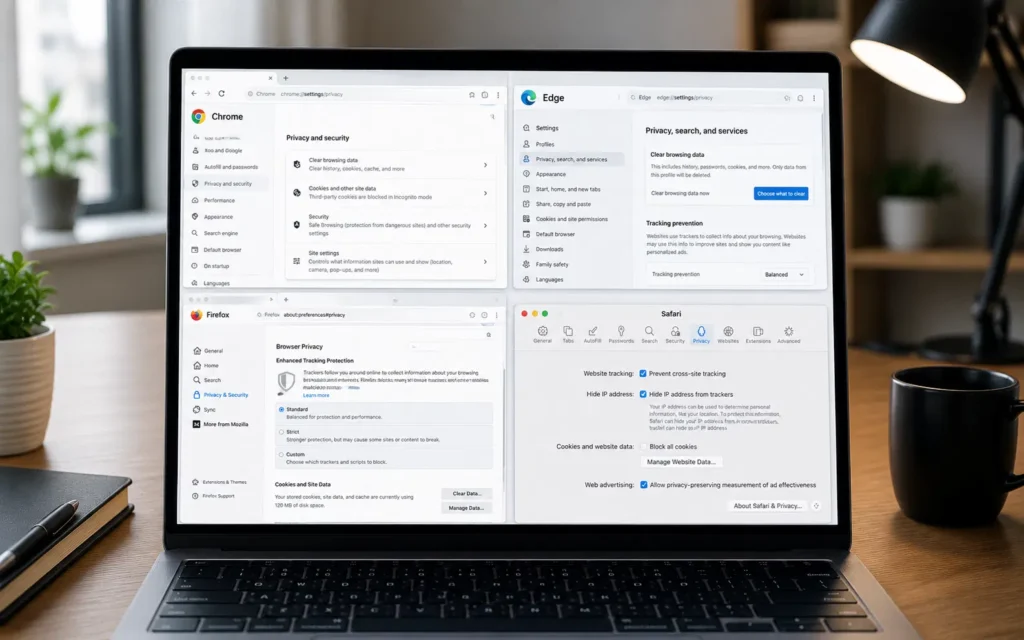
If the general troubleshooting methods did not resolve error 232011, then it could possibly be browser-specific settings that caused the error. The subsequent solutions only contain features specific to each browser and do not include the same general solutions that were discussed in the beginning.
Google Chrome
If the error is present only in Chrome, try playing the video in Incognito Mode. Most extensions are disabled by default and this will immediately show if an extension is causing the problem.
If it doesn’t stop, reset Chrome’s settings to default. This will restore the browser settings without removing the bookmarks or saved passwords, and can correct misconfigured settings that have to do with video playback.
Microsoft Edge
If videos only fail in the Edge browser, reset the Edge browser’s settings. This will prevent any changes to the configuration that could affect playing back media and preserve your personally saved data.
Additionally, make sure browser resources are not being restricted by the use of Efficiency Mode, among other performance-related options, during video play. Sometimes these features can be temporarily disabled to boost streaming performance.
Mozilla Firefox
Firefox has a Refresh Firefox feature, which restores Firefox without removing important personal information. Can be helpful if the videos don’t display properly because of broken browser settings.
If you are using Enhanced Tracking Protection, decrease the protection level for the website that has the problem. There are specific sites that need scripts or media resources, which strict privacy settings may block.
Safari
While on Safari, delete Website Data from the specific website rather than from Safari. This will delete corrupted website files and save other data for websites.
If you are utilizing content blocks, temporarily disable them and refresh the video. Embedded media players might not load correctly due to some blockers.
How to Fix Error 232011 on Mobile Devices
A similar playback issue may occur when users watch videos using a browser or web-based application on their mobile devices.
Android
Update your browser from the Google Play Store, delete the browser app cache and restart the device. If the issue continues, try switching between WiFi and mobile data to see if it’s a network problem.
iPhone and iPad
Upgrade iOS to the most current version, delete the website data in Safari or Chrome, and disable the VPN for the time being if you have one on. When videos don’t work on one site, it is probably a problem with the site, not your device.
How to Prevent Error Code 232011
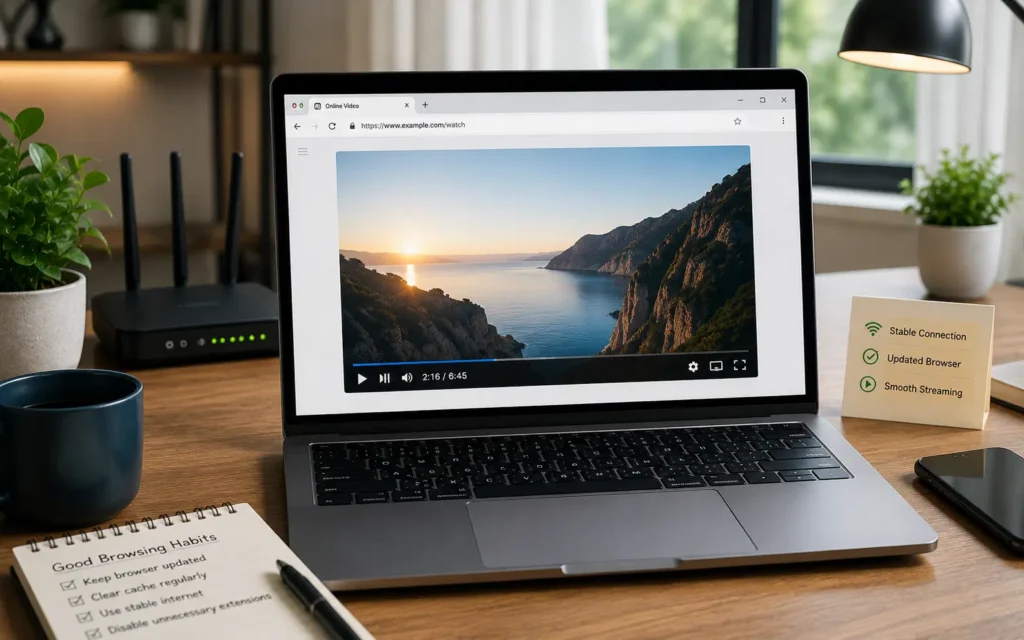
While error code 232011 is typically a simple error to resolve, there are some basic practices you can follow to avoid the error from happening again.
Keep Your Browser Updated
The browser updates make the browser more compatible with modern websites, fix known bugs and make the video playback performance better.
Remove Unnecessary Extensions
Excessive extensions can lead to issues with online gamers. Use only the extensions that you need and eliminate old ones.
Clear Browser Data Periodically
It removes corrupted website data from the cache, which will help playback in the future, if you flush your browser’s cache regularly, say every two or three weeks.
Use a Reliable Internet Connection
To enjoy continuous streaming, a stable network is required. Increasing your internet speed will make it less likely that you’ll experience error 232011 in the future if videos often buffer or don’t load.
Final Thoughts
Error 232011 is a disruption in your streaming, but it won’t be a serious problem with your system. Most users are able to solve it through checking the internet connection, clearing the browser data, updating the browser, or checking the settings of the browser extensions and VPNs.
If the error presents itself on a single website only, following all the troubleshooting that was recommended, the problem is probably on the website itself and the site owner may need to correct the problem. Knowing the typical reasons and knowing the proper solutions you can get your video playing back again and decrease the odds for getting error 232011 once again.
Read Now:
Windows 11 Taskbar Not Responding? Here Are 8 Proven Fixes (2026)
How to Check Laptop Specifications on Windows 11
Frequently Asked Questions
What Is Error Code 232011?
Error code 232011 is a video playback error that occurs when a browser is unable to load or play an online video. It’s often related to browser settings, network problems, corrupted cached data, or temporary issues with the website hosting the video.
Why Does Error 232011 Keep Appearing?
When the same error message keeps appearing, it’s probably because of persistent browser data, conflicting extensions, a slow or unstable Internet connection, or some problem with the website itself. When following these troubleshooting procedures in this guide does not help to locate the problem, they can be helpful in determining and resolving the problem.
Can Browser Extensions Cause Error 232011?
Yes. Video players might encounter error 232011 because extensions like ad blockers, privacy tools, and script blockers block the tools used to load required resources. Suspending extensions for a while, to see if one of them is to blame, is a good way to verify.
Is Error 232011 a Browser or Website Problem
It can be either. The error is often caused by the browser settings or by outdated software or a corrupt cache, but server outages or problems with the website’s video player can also prevent videos from loading properly.
Can I Fix Error 232011 Without Reinstalling My Browser?
In most cases, yes. Most often, the problem can be fixed by refreshing the browser, deleting browser data, updating the browser, checking the internet connection, and disabling conflicting extensions without reinstalling the browser.